Generator

P Video AI Video Generator

Create short videos from text prompts or reference images, then tune duration, resolution, aspect ratio, audio saving, and seed for repeatable creative tests — all in the browser, with no install and no GPU setup.

Mode
Aspect ratio
Resolution
Save audio

Your result appears here

P Video AI Video Generator · 720p · 5s

Drafting flow

Build short videos without a full editing timeline

P Video is built around short video drafts, where a quick, watchable clip is often more useful than hours in a timeline. Write the shot, pick the format, run a compact generation, and keep the versions that move the concept forward. The generator surfaces only the inputs that matter for text and image work, so the path from idea to clip stays short.

Use text mode when the scene only lives as an idea, and switch to image mode when a product photo, character image, or key visual should anchor the first frame. The generator is the text-and-image hub of the product, while two sibling tools handle different jobs: compare P Video Avatar for talking-presenter drafts and P Video Animate for reference-driven motion on a still image. Each keeps the same light console rhythm, so moving between them feels like one product rather than three.

Because everything runs online, there is nothing to download and no GPU to manage. You write a prompt or upload an image, choose your settings, generate, preview, and download — then iterate. New accounts start with free credits, credits never expire, and your generations stay in the library for six months so a promising direction is always one click away.

Input modes

Two ways to start a clip

The generator handles both text and image inputs, so you can begin from a blank prompt or from a frame you already trust.

✍️

Text to video

Start from a sentence. Describe the subject, the setting, the camera move, and the mood, then generate a short clip directly from that brief. Text mode is the fastest path from a written idea to something you can watch, compare, and refine.

🖼️

Image to video

Anchor the first frame with a reference image — a product photo, a character render, or a key visual — and let the prompt direct how that frame moves. Image mode keeps your subject consistent while you explore motion, pacing, and framing.

Prompt examples

Prompts that describe motion

Strong prompts name the subject, action, camera movement, lighting, and mood in one compact shot brief. Borrow these as starting points and adjust a single detail at a time.

A clean product launch clip, slow camera push, soft purple lighting, reflective studio table, realistic motion, social ad pacing.
A founder walking through a bright office, subtle handheld camera, confident pacing, natural daylight, shallow depth of field.
A cozy cafe scene, steam rising from a single cup, slow pan across the table, warm cinematic atmosphere, gentle morning light.
A sleek sneaker rotating on a pedestal, studio lighting, glossy reflections, static frame, crisp detail, premium ad look.
An aerial drift over coastal cliffs at golden hour, smooth forward motion, soft haze, wide landscape framing, calm mood.
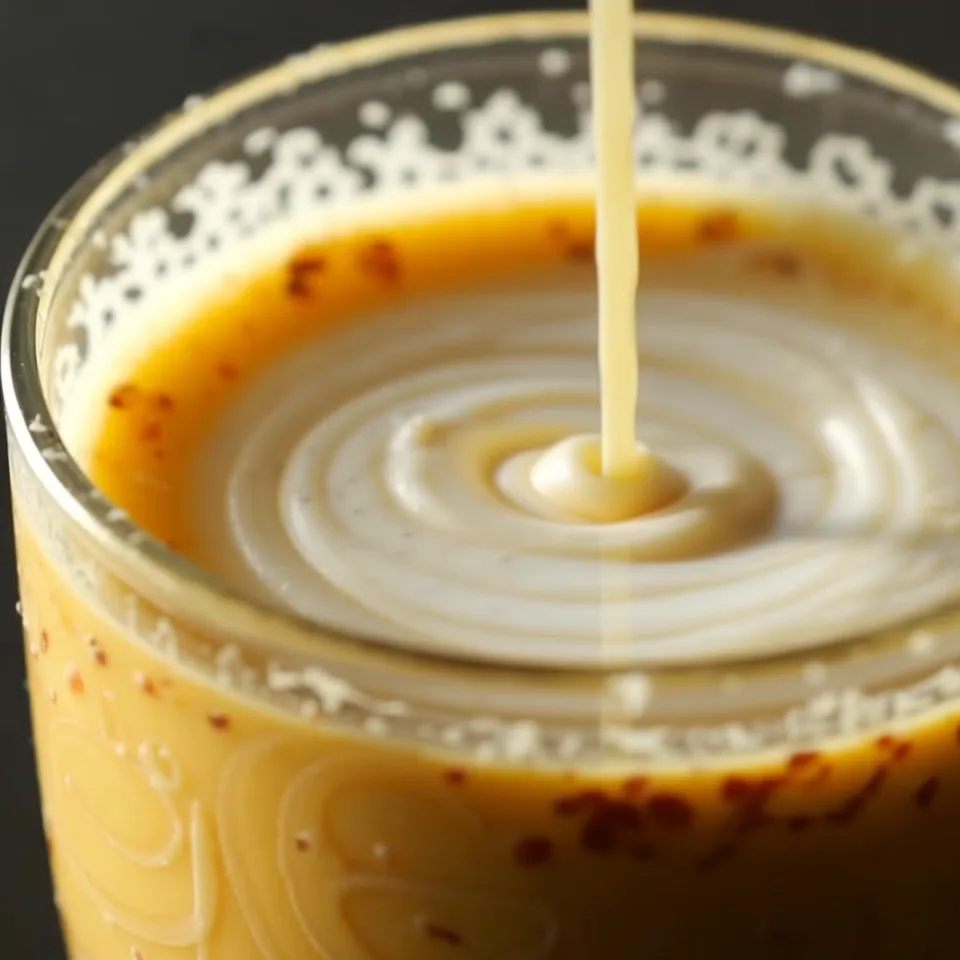
A latte being poured into a glass, macro close-up, slow steady motion, soft window light, rich texture, satisfying loop feel.

Prompting

Anatomy of a prompt that follows your intent

A short clip reads cleanest when the brief is built in a clear order. These three parts cover most of the difference between a vague result and a deliberate one.

Prompt structure

Subject

a sleek sneaker on a pedestal

Camera

slow rotating push-in

Light + mood

studio key light, premium ad look

🌀 Name what should hold steady as well as what should move to reduce drift.

🎯

Subject first

Name the main subject before anything else. Front-loading what the clip is about keeps the generation anchored on what matters and reduces wandering results.

🎥

One camera move

Give a single, deliberate camera instruction — slow push-in, static frame, gentle pan — rather than several at once. One clean move reads far better in a short clip.

🌗

Light and mood

Spell out the lighting and atmosphere you want — soft daylight, warm cinematic glow, studio key light — so the look is intentional instead of left to chance.

Workflow

From prompt to short clip in four steps

01

Write the shot

Describe the subject, setting, camera movement, lighting, mood, and any motion that should stay stable. A specific shot brief gives the model a clear target and cuts down on retries.

02

Pick the input

Stay in text mode when the scene is only an idea, or switch to image mode and upload a reference frame when a product, character, or key visual should anchor the clip.

03

Set the format

Choose an aspect ratio for the destination, set duration, and pick 720p for fast iteration or 1080p for a higher-quality draft. Generation is billed by the second, so short tests stay cheap.

04

Review and refine

Preview the clip, keep the takes that work, and adjust one variable at a time for the next version. Saved generations stay in your library so you can compare directions side by side.

Settings

Dial in the format before you generate

A few settings decide how a draft looks and what it costs. Set them with intent and each generation stays cheap, comparable, and on-format.

🖼️

Aspect ratio

Match the destination before you generate. Choose vertical framing for feeds and stories, widescreen for landscape pitch reels and embeds. Picking the ratio up front avoids re-cropping a clip you otherwise liked.

🎚️

720p vs 1080p

Generate at 720p while you experiment, then re-run at 1080p once the direction is locked. You only spend the higher per-second rate when a draft has earned a polished pass, so iteration stays inexpensive.

🌱

Seed control

Reuse a seed to keep a result stable while you adjust one variable, or change it to explore a fresh interpretation of the same prompt. Seeds turn random takes into repeatable, comparable creative tests.

Use cases

What people draft in the generator

Text and image clips cover most of the lightweight, high-volume work that happens before a full production pass.

📱

Social clips

Draft feed-ready short videos and test hooks, pacing, and framing before committing to a full edit.

🛍️

Product motion

Show a product idea moving for a landing page, an ad, or an internal sign-off without a studio booking.

📣

Campaign drafts

Visualize a concept for a pitch or review call so collaborators react to motion instead of a static board.

🎞️

Storyboard beats

Turn key beats into moving frames to feel the rhythm of a sequence before any of them earns production time.

🧪

Creative testing

Compare moods, camera moves, and aspect ratios across quick generations to find a direction worth keeping.

💡

Concept reels

Assemble a short moving visual that communicates an idea in a deck or a chat thread far better than words alone.

Credits

Text and image video share the same credit rate

Generate at 720p for iteration at 5 credits per second, or 1080p at 10 credits per second. New accounts start with free credits, and the full plan table lives on P Video Pricing.

View Pricing

FAQ

Generator questions

What inputs does P Video AI Video Generator support?

The generator supports text-to-video prompts and image-to-video inputs. You can write a scene in plain language, or upload a reference image to anchor the first frame, then tune duration, resolution, aspect ratio, optional audio saving, and seed for repeatable tests.

When should I use text mode versus image mode?

Use text mode when the scene only exists as an idea and you want the model to build it from a description. Switch to image mode when a product photo, character image, or key visual should anchor the first frame and guide the motion that follows.

How are credits calculated?

Generation is billed by the second. Text and image video both use 5 credits per second at 720p and 10 credits per second at 1080p, so a short draft costs only a few credits. You can compare every plan and per-second rate on the pricing page.

Should I start at 720p or 1080p?

Start at 720p while you iterate — it generates a draft quickly and keeps each test inexpensive. Re-run the prompt at 1080p once the direction is locked and a clip is ready for a higher-quality pass.

How do I write a prompt that follows my intent?

Lead with the subject, add one clear camera instruction, then describe the lighting and mood. Naming what should stay stable as well as what should move helps reduce drift, and refining one variable at a time converges faster than rewriting the whole prompt.

Do I need to install anything or own a GPU?

No. P Video runs entirely in the browser as an online product. You write a prompt or upload an image, choose your settings, and generate — there is no local model download or GPU setup for the online workflow.

How many free credits do new accounts get?

New accounts receive 60 signup credits, and credits do not expire. You can spend them on text-to-video and image-to-video tests in the generator before deciding to buy a credit pack.

How long are my generated videos kept?

Generated works are retained in your library for 6 months, so you can revisit, compare, and download earlier drafts while you keep iterating on a concept.