
Guide · 2026
How to Use P Video Animate (2026 Complete Guide)
Turn a still image into a moving clip with P Video — by transferring motion from a source video onto your image while keeping identity and visual consistency.
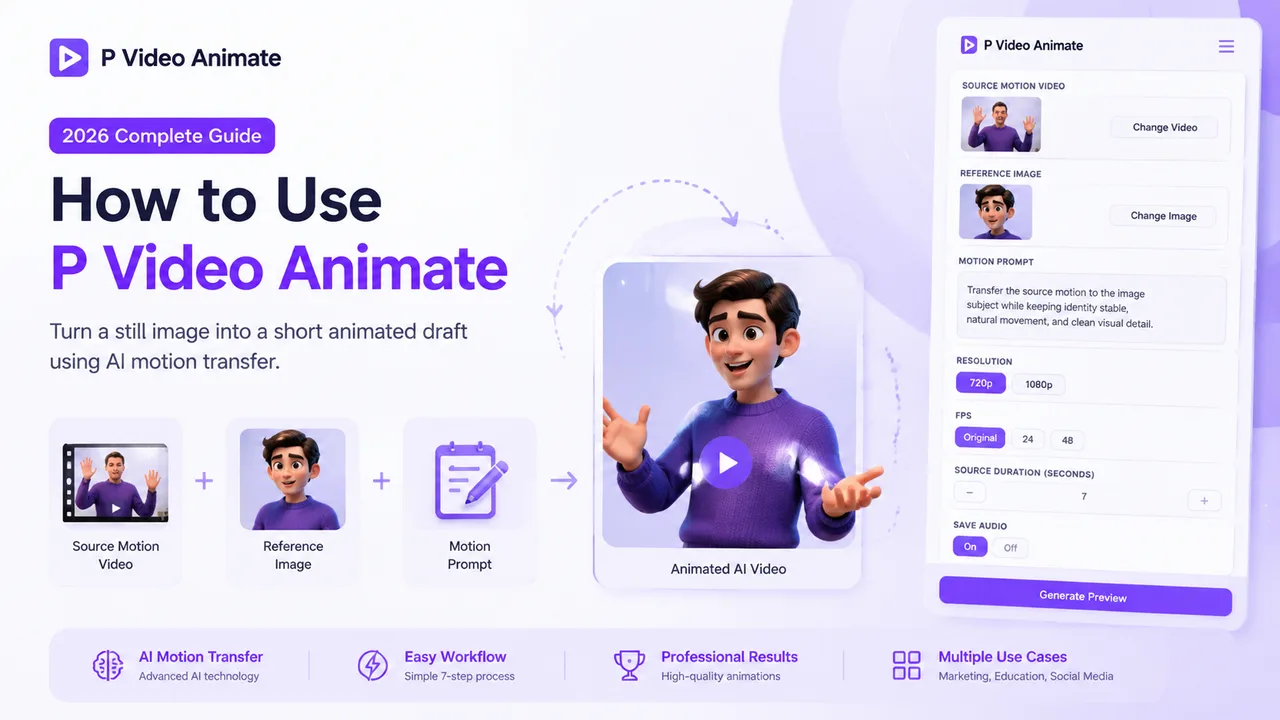
Quick Answer
P Video Animate transforms a static image into a short animated video by transferring motion from a source video. The workflow is simple:
Source Motion Video + Reference Image + Motion Prompt → Animated AI Video
Instead of animating frame by frame, the AI analyzes movement from a source video and applies it to your image. That makes it useful for social media, character animation, product marketing, education, storytelling, and concept visualization.
What Is P Video Animate?
P Video Animate is an AI-powered motion transfer tool that converts a still image into a short animated draft. Instead of generating motion from text alone, it combines a source motion video, a reference image, and a motion prompt — then transfers the source movement onto the image subject. This gives you far more motion control than a typical image-to-video workflow. Prefer to start from a prompt instead? Use the P Video AI Video Generator.
Who Should Use P Video Animate?
Content Creators
Make animated content for TikTok, Instagram Reels, and YouTube Shorts without filming new footage.
Educators
Turn static teaching materials — historical figures, scientific illustrations, character lessons — into engaging visual explanations.
Marketing Teams
Create product spokesperson videos, brand mascots, and animated ads from existing images.
Designers
Rapidly test motion concepts before moving into more expensive production pipelines.
Storytellers
Animate characters, illustrations, and concept art for visual storytelling.
What You Need Before Starting
Prepare three elements before you animate.
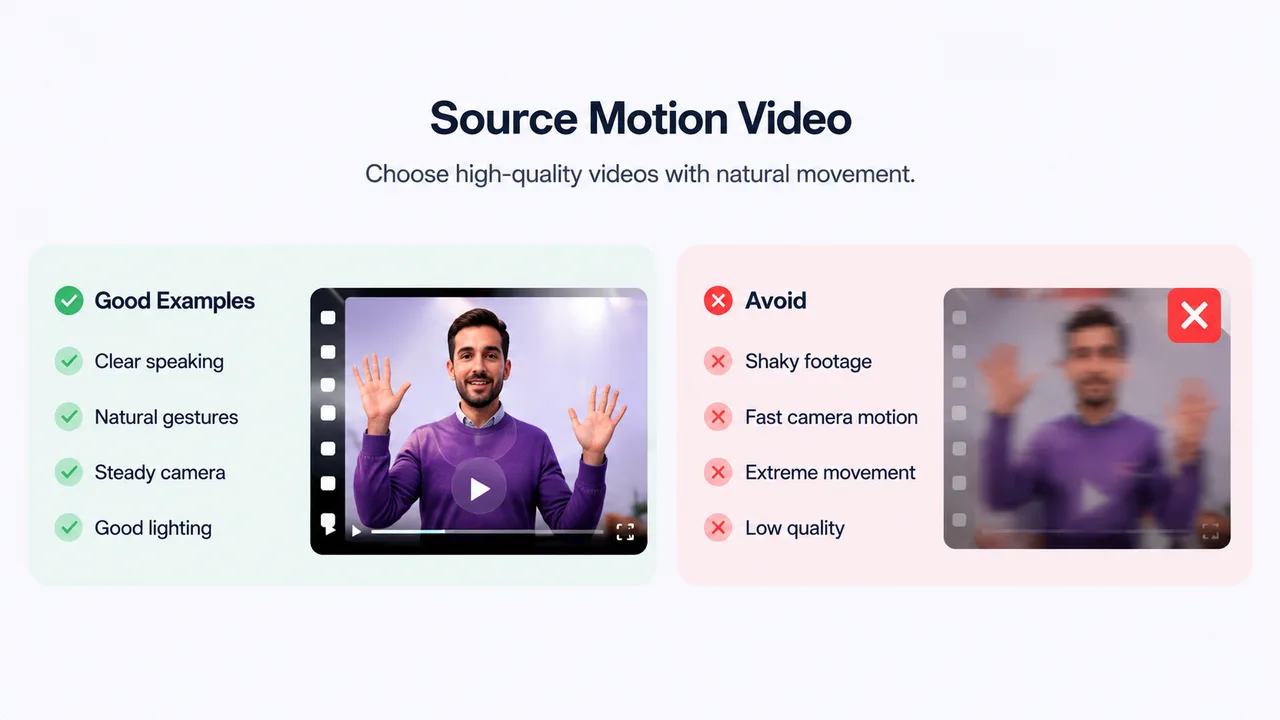
Source Motion Video
A 3–15 second clip with clear movement. The AI analyzes body, head, and facial movement plus gesture timing, then transfers those patterns to the image.
Reference Image
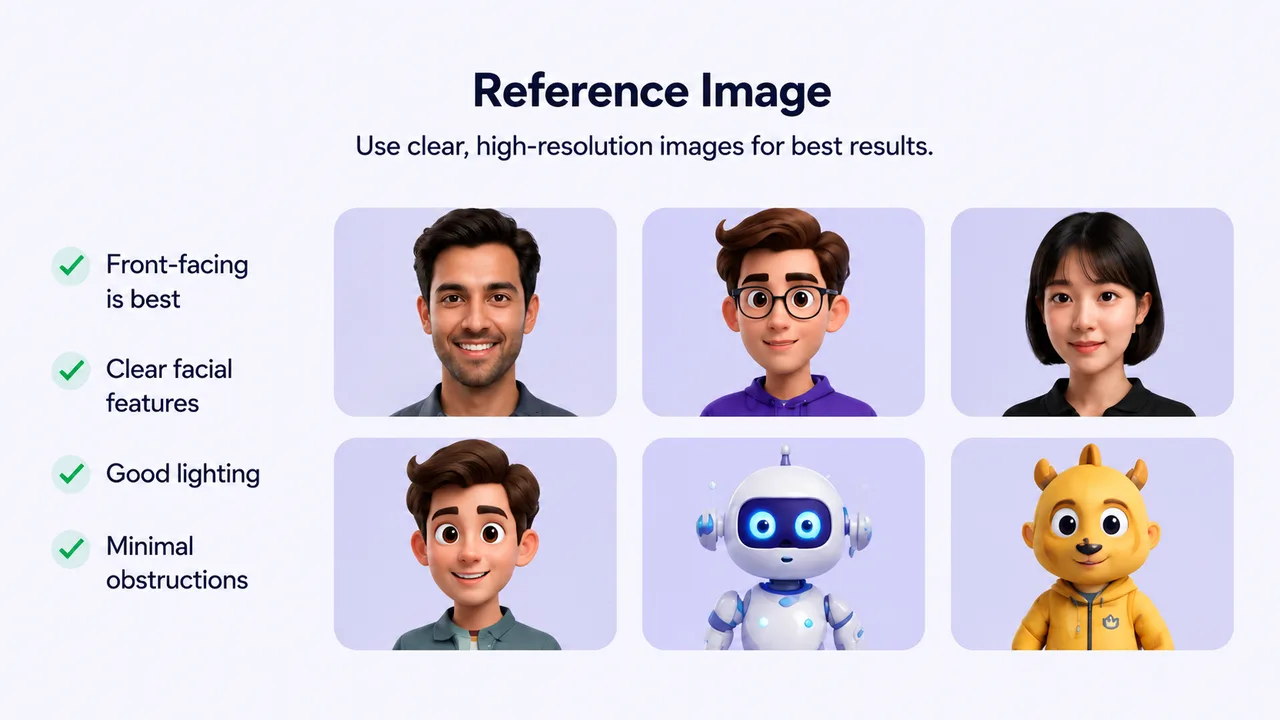
The subject that will be animated — a high-resolution portrait, character, illustration, mascot, or product spokesperson.
Motion Prompt
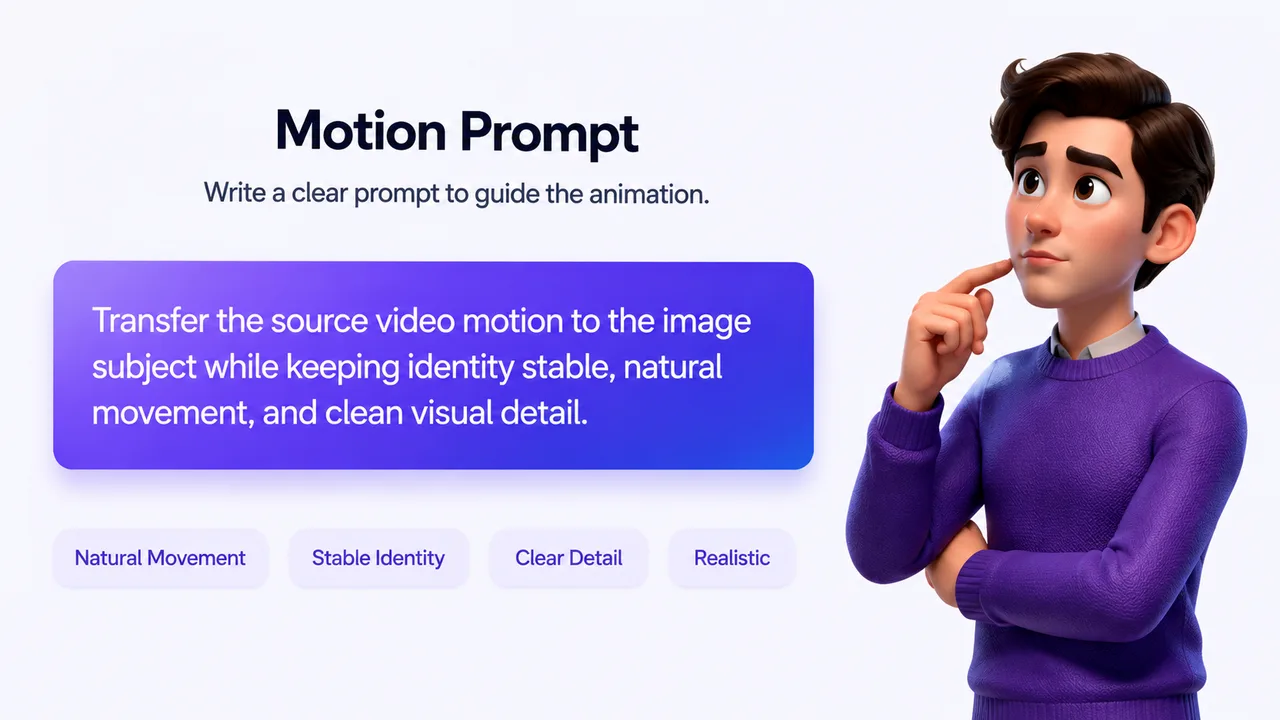
Short text describing motion style and expression. It influences expression intensity, identity preservation, motion style, and overall realism.
How Motion Transfer Works
Many users assume the AI simply overlays movement onto an image. In reality the process has four stages.
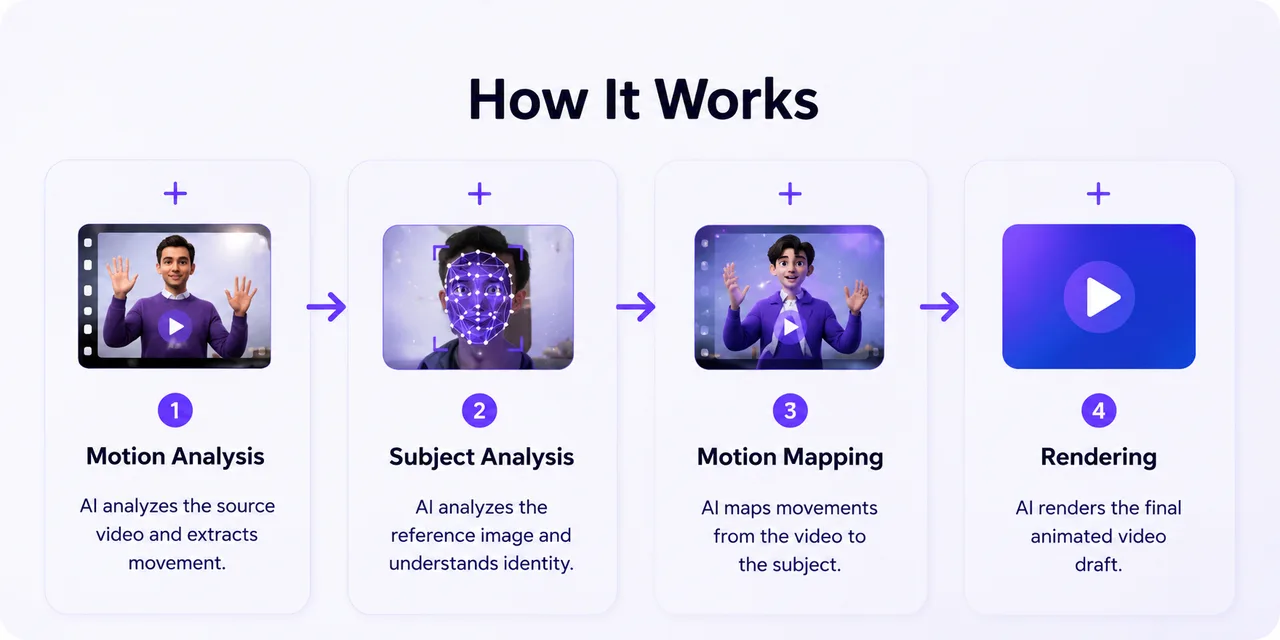
1. Motion Analysis
The AI analyzes the source video — head rotation, body movement, facial expressions, timing, and gesture frequency — to build a motion map.
2. Subject Analysis
It analyzes the reference image — facial structure, head position, eyes, mouth, and body proportions — to build a digital representation of the subject.
3. Motion Mapping
It maps movement from the source onto the image while maintaining identity, consistency, and realism.
4. Rendering
The final animation renders from the motion information, prompt instructions, and image details into a draft preview.
How to Create Your First Animation
The workflow follows seven simple steps.
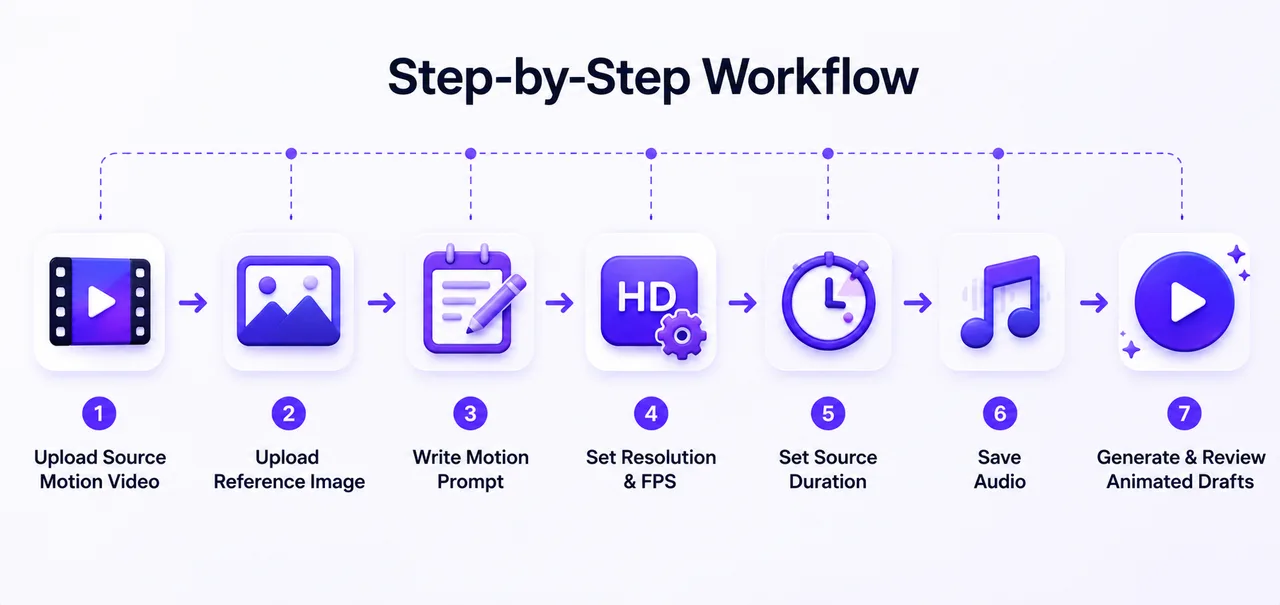
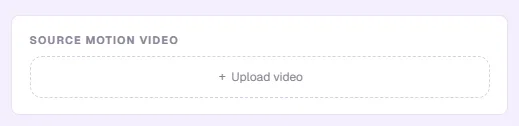
Step 1: Upload a Source Motion Video
Upload a video containing the movement you want to transfer.
Good source videos
- Speaking and presentation videos
- Natural gestures
- Smooth movement
Avoid
- Shaky footage and fast camera motion
- Extreme body movement
- Low-quality videos
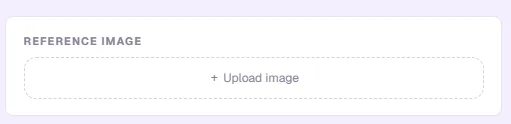
Step 2: Upload a Reference Image
Upload the image you want to animate — image quality has a major impact on results.
Requirements
- Clear subject
- High resolution
- Minimal obstructions
- Good lighting
Step 3: Write a Motion Prompt
The prompt helps define how movement should appear.
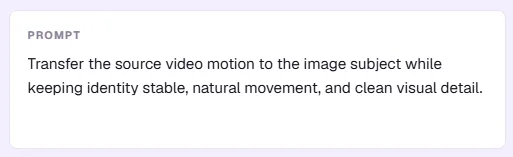
Transfer the source video motion to the image subject while keeping identity stable, natural movement, and clean visual detail.Prompts influence motion intensity, expression style, identity consistency, and overall realism. A few variations:
Professional presentation
Natural speaking motion, professional gestures, stable identity, realistic movement.Social media creator
Energetic gestures, expressive movement, engaging presentation style.Educational teacher
Calm movement, friendly expression, teacher-style explanation.Step 4: Configure Resolution & FPS
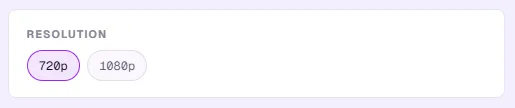
Resolution
720p for drafts, 1080p for final exports.
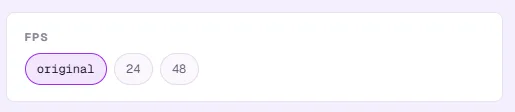
FPS
Choose Original, 24 FPS, or 48 FPS. Higher FPS generally produces smoother movement.
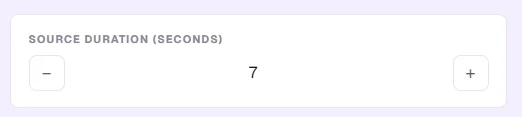
Step 5: Set Source Duration
Specify how many seconds the animation should cover, and match it to the source video motion — for example 5, 7, or 10 seconds.
Step 6: Enable or Disable Audio
P Video Animate can keep the audio from the source video.
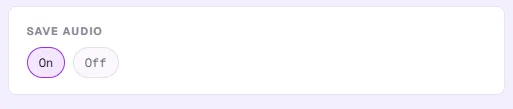
- On — presentations, educational content, social narration.
- Off — when adding audio later, creating visual-only drafts, or testing motion.
Step 7: Generate and Review Animated Drafts
Click Generate. The AI analyzes the motion and image, applies movement, and renders the animation.

Review motion quality, identity consistency, and expression realism before exporting.
Best Source Motion Videos by Use Case
The source video is the foundation of the entire animation — the AI learns movement from it. Clear, natural motion produces realistic results; chaotic or low-quality motion rarely recovers, no matter the prompt.
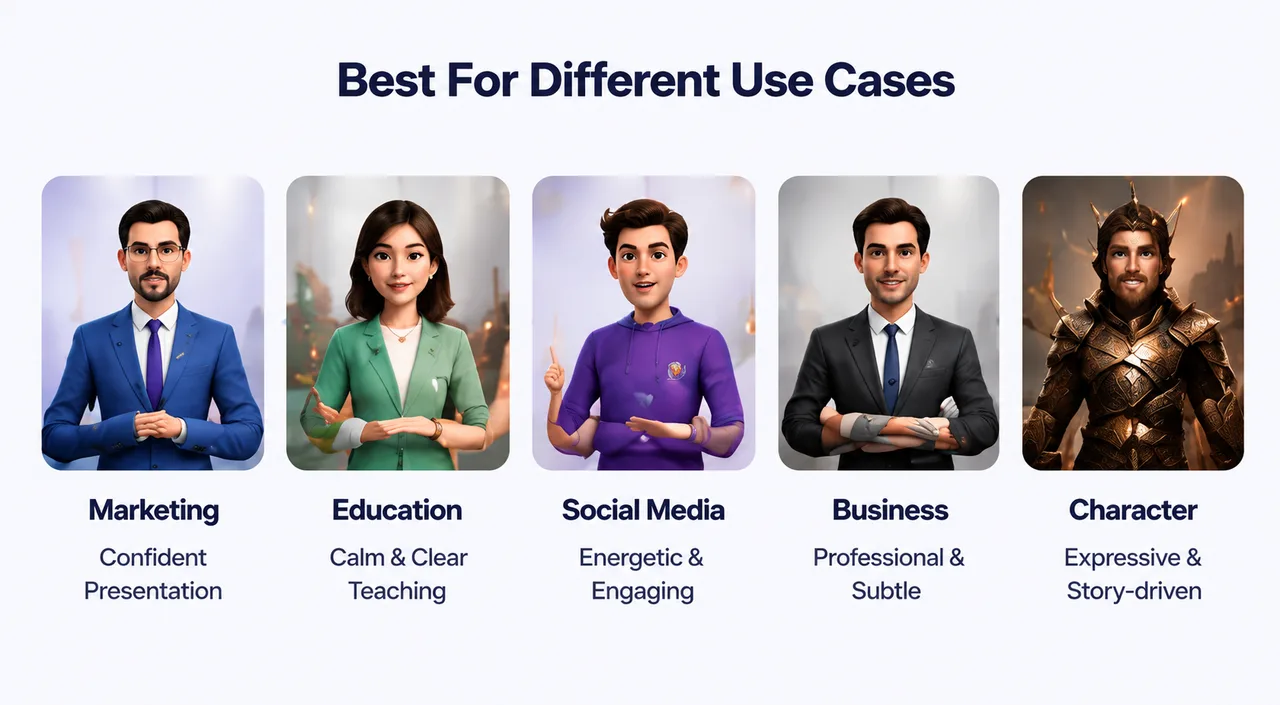
Product Marketing
Use confident gestures, controlled hand movement, and smooth pacing. Moderate, professional movement keeps focus on the product.
Best for: Product demos · SaaS explainers · Landing page videos · Feature announcements
Educational Content
Calm, controlled motion from online instructors or webinar presenters feels professional and less distracting for learners.
Best for: Online courses · Tutorials · Educational YouTube · Internal training
Social Media Content
Influencer-style delivery with dynamic, expressive gestures grabs attention on fast-paced feeds.
Best for: TikTok · Instagram Reels · YouTube Shorts
Corporate Presentations
Restrained movement from executive or conference speakers communicates authority and confidence.
Best for: Business updates · Internal comms · Company announcements
Character Animation
Stronger acting performances — emotional acting, storytelling gestures, dramatic expressions — communicate personality and emotion.
Best for: Storytelling · Character content · Creative projects
Best Reference Images by Goal
A strong image gives the AI more to work with, improving identity consistency and visual quality.
Human Portraits
The most common choice. Use a front-facing portrait with clear facial features, good lighting, and a neutral background.
AI-Generated Characters
Great for creative projects. Keep a consistent character design, clear facial details, and high resolution.
Illustrations
Produce unique animation styles for children's content, comics, and storytelling. Use clear outlines and consistent proportions.
Brand Mascots
Turn a mascot into an animated spokesperson. Keep a simple, recognizable design with a strong visual identity.
Product Characters
Useful for SaaS and consumer products — a friendly animated assistant introducing app features and onboarding flows.
How to Write Better Motion Prompts
Good prompts are simple — bad prompts are often too long. Match the prompt to the audience.
Basic
Natural movement, stable identity.Marketing
Confident presentation, engaging gestures, natural movement.Teacher
Friendly expression, calm movement, educational speaking style.Character
Expressive acting, cinematic movement, emotional gestures.Real Workflow Examples
Each example combines a source motion video, a reference image, and a prompt to produce an animated output.
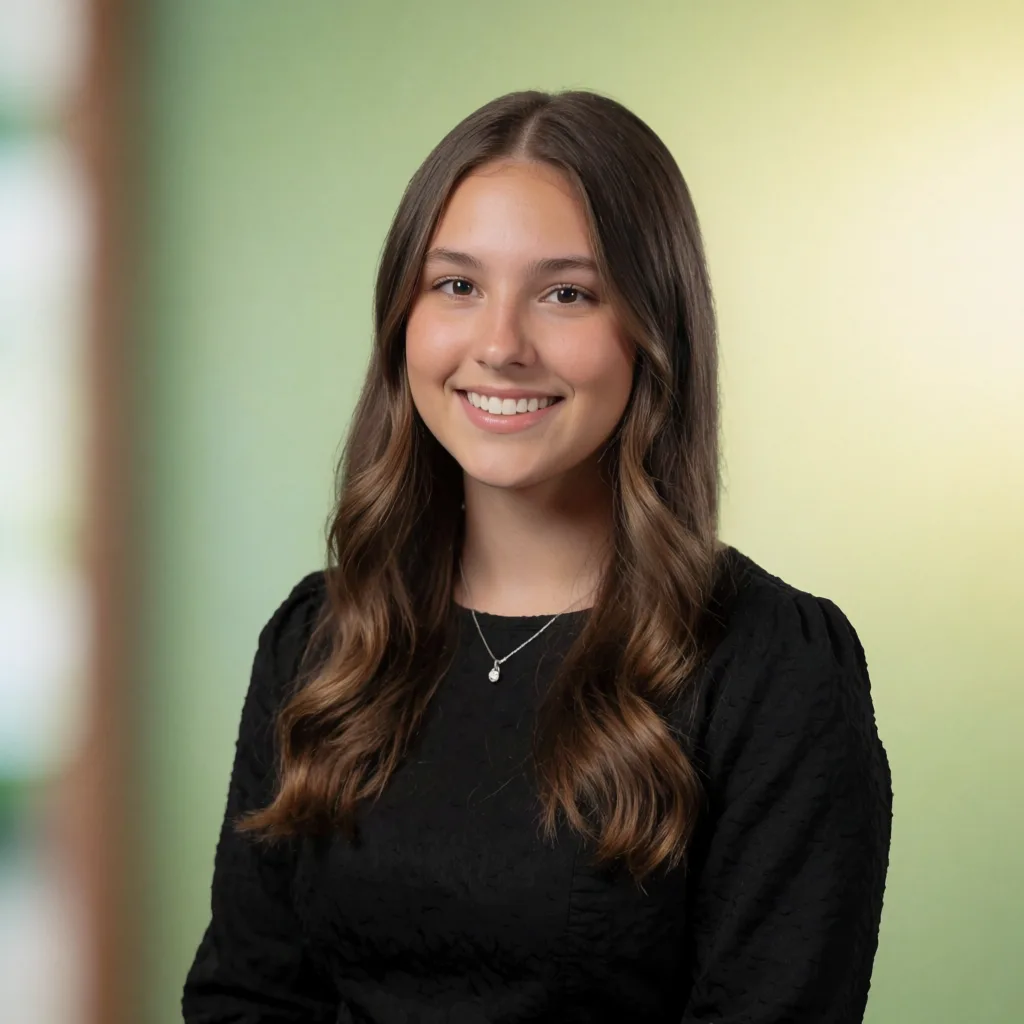
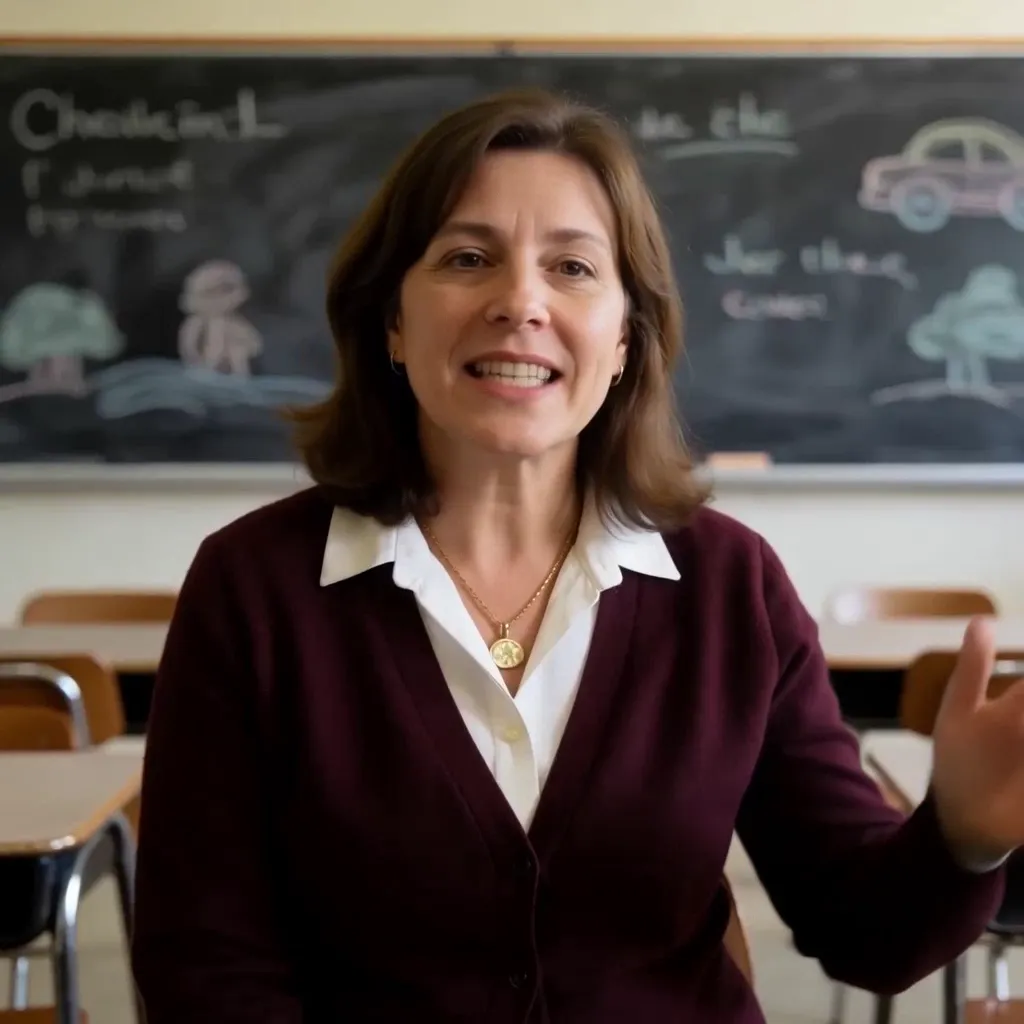
Animated Product Spokesperson
Goal: Create a short marketing video for a software product.
Reference image
Source motion
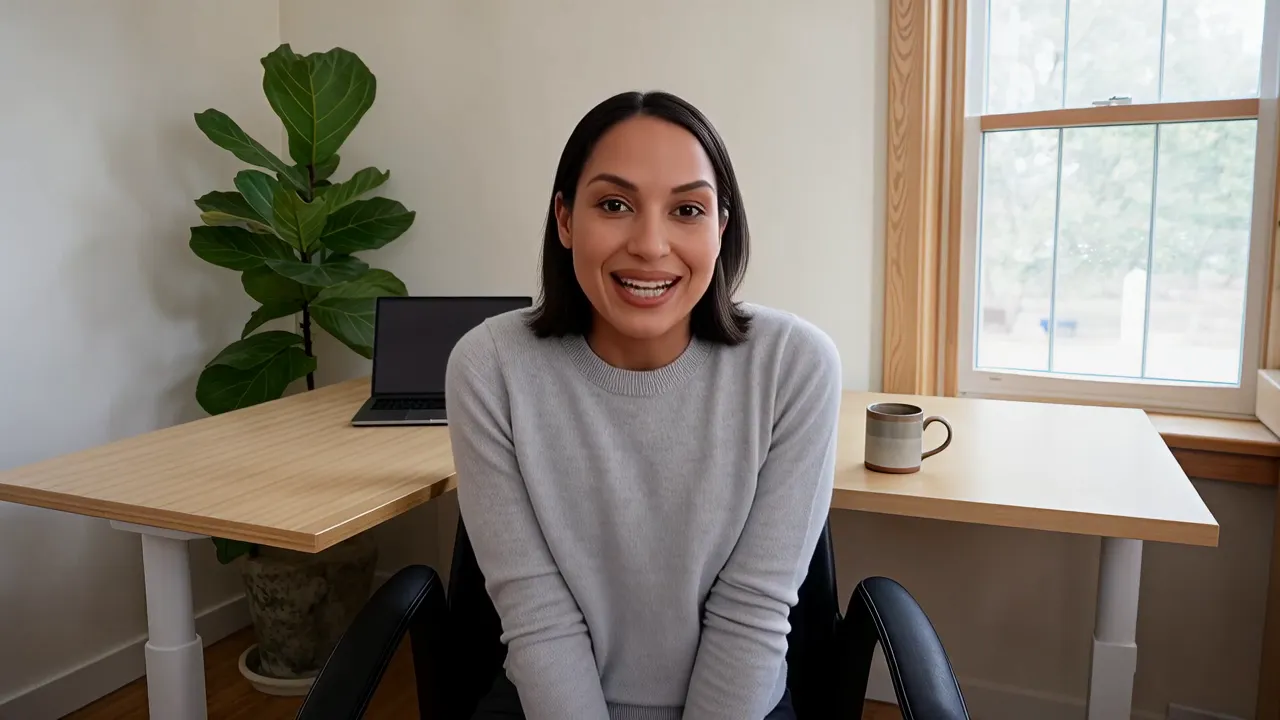
Confident presentation, natural gestures, stable identity, professional communication.Animated output
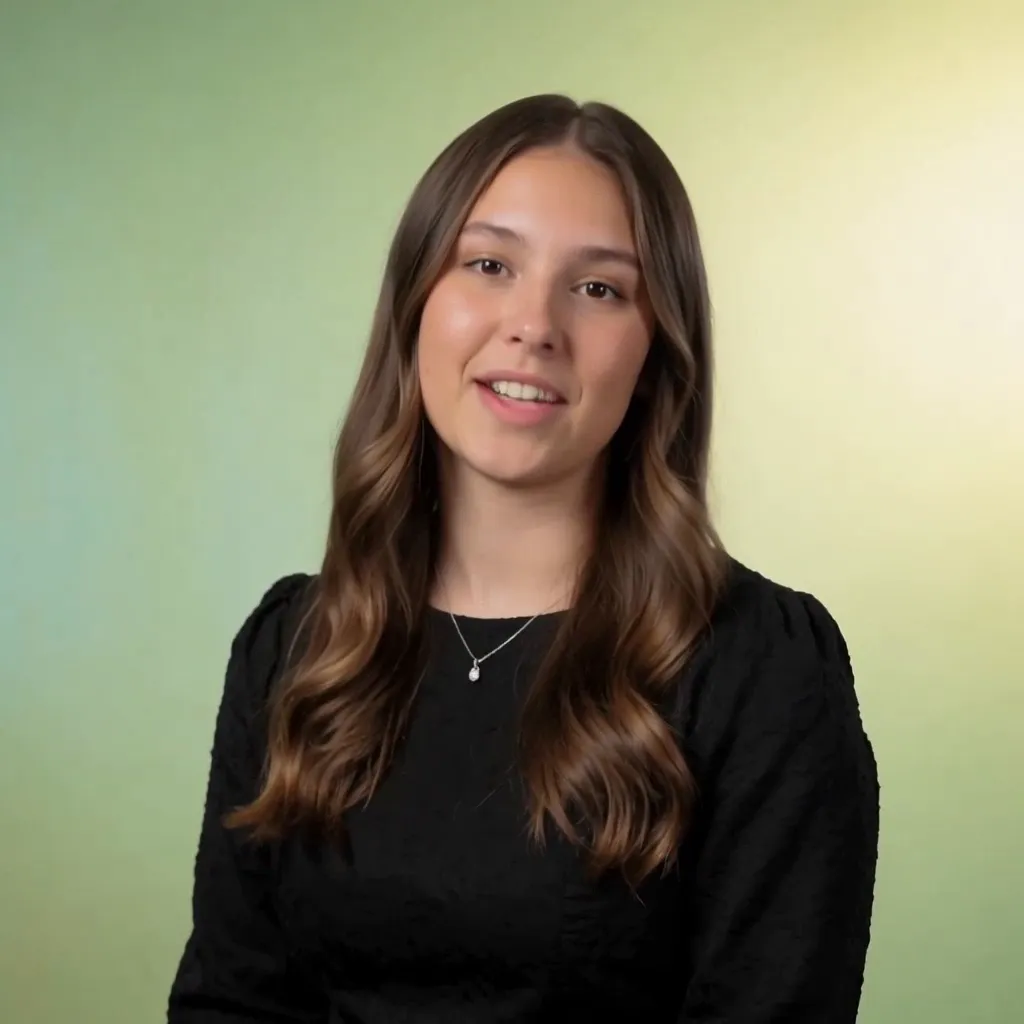
The source video provides natural presentation movement, while the portrait keeps a professional appearance.
Animated Online Teacher
Goal: Create educational content without filming.
Reference image
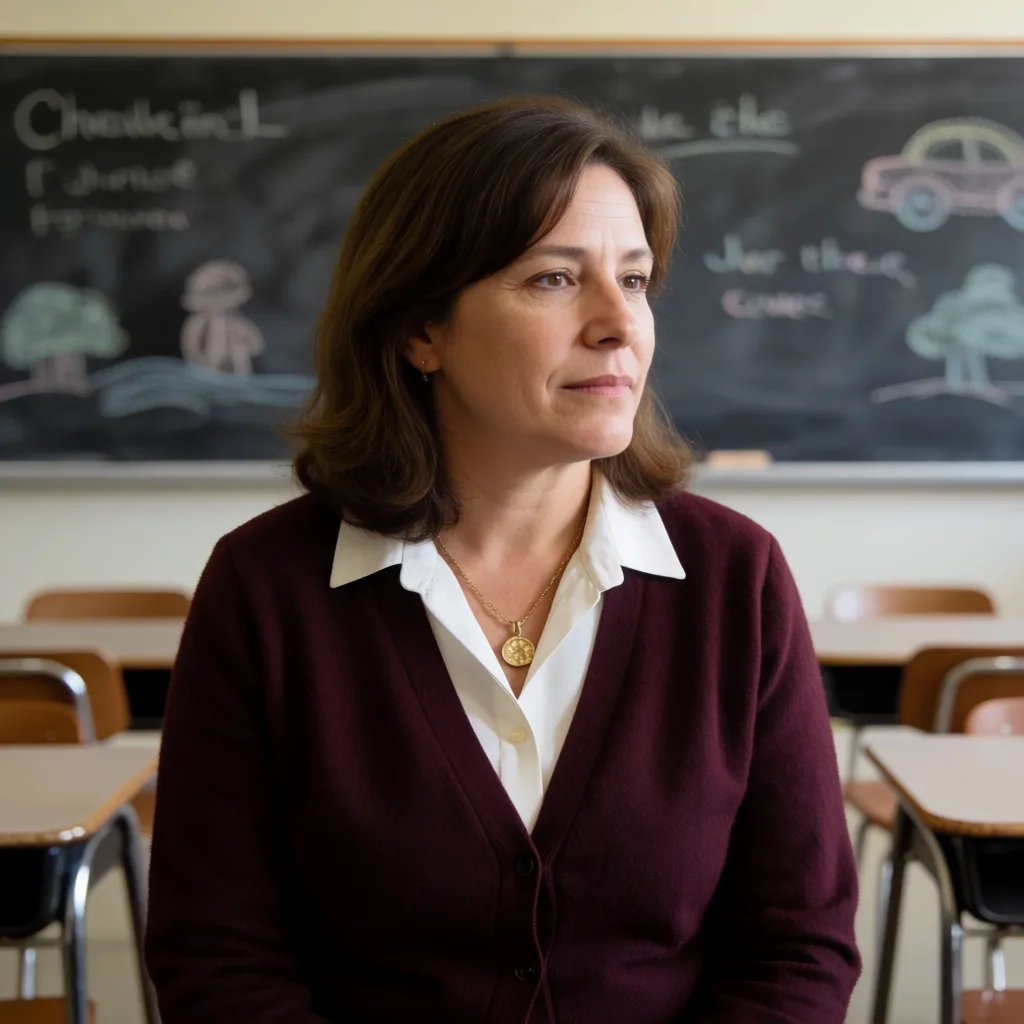
Source motion
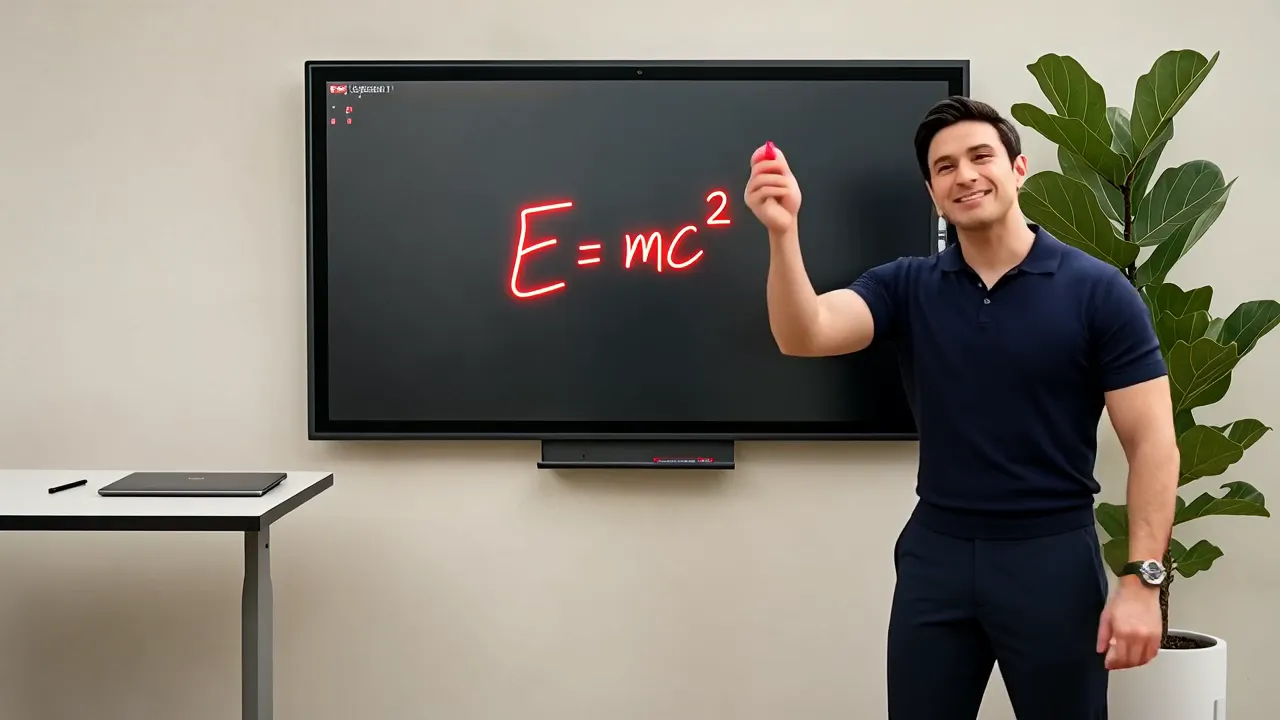
Friendly instructor, calm movement, educational speaking style.Animated output
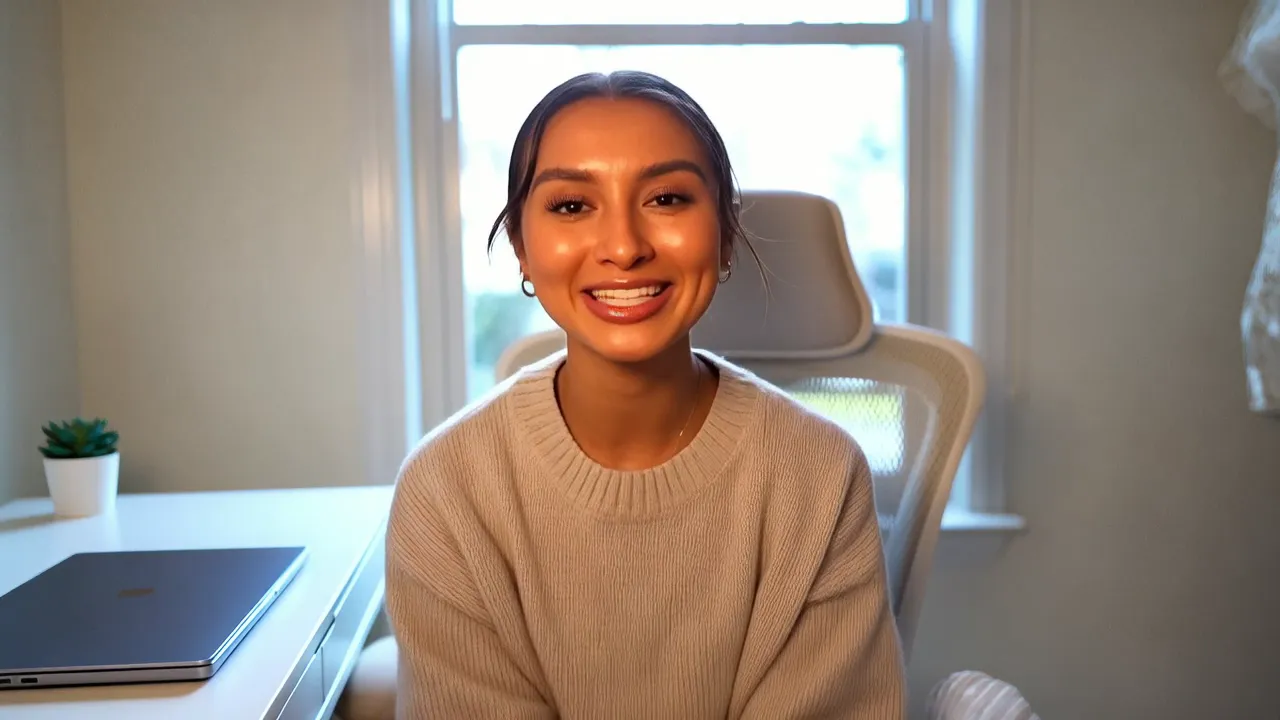
The motion stays controlled and easy to follow.
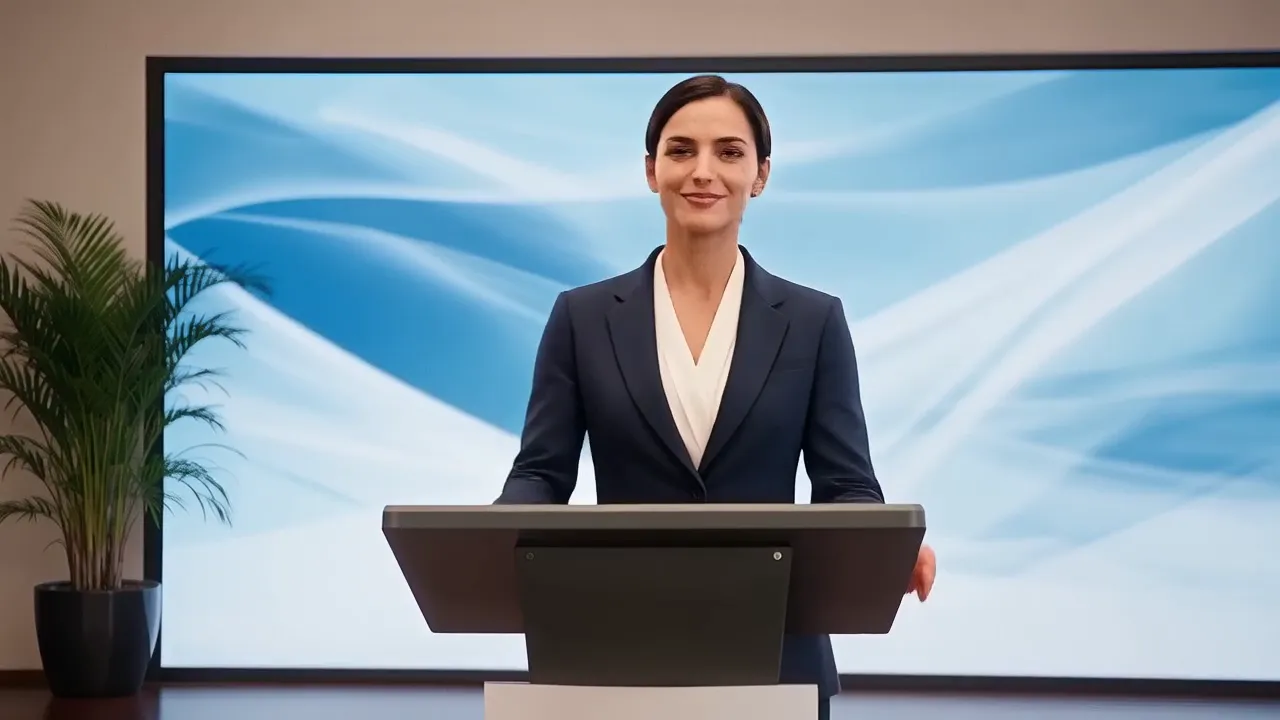
Social Media Creator
Goal: Produce short-form content for TikTok.
Reference image

Source motion
Energetic movement, expressive gestures, engaging presentation.Animated output

The higher-energy movement fits short-form platforms.
Brand Mascot
Goal: Animate a mascot for onboarding content.
Reference image

Source motion
Friendly movement, welcoming gestures, expressive personality.Animated output
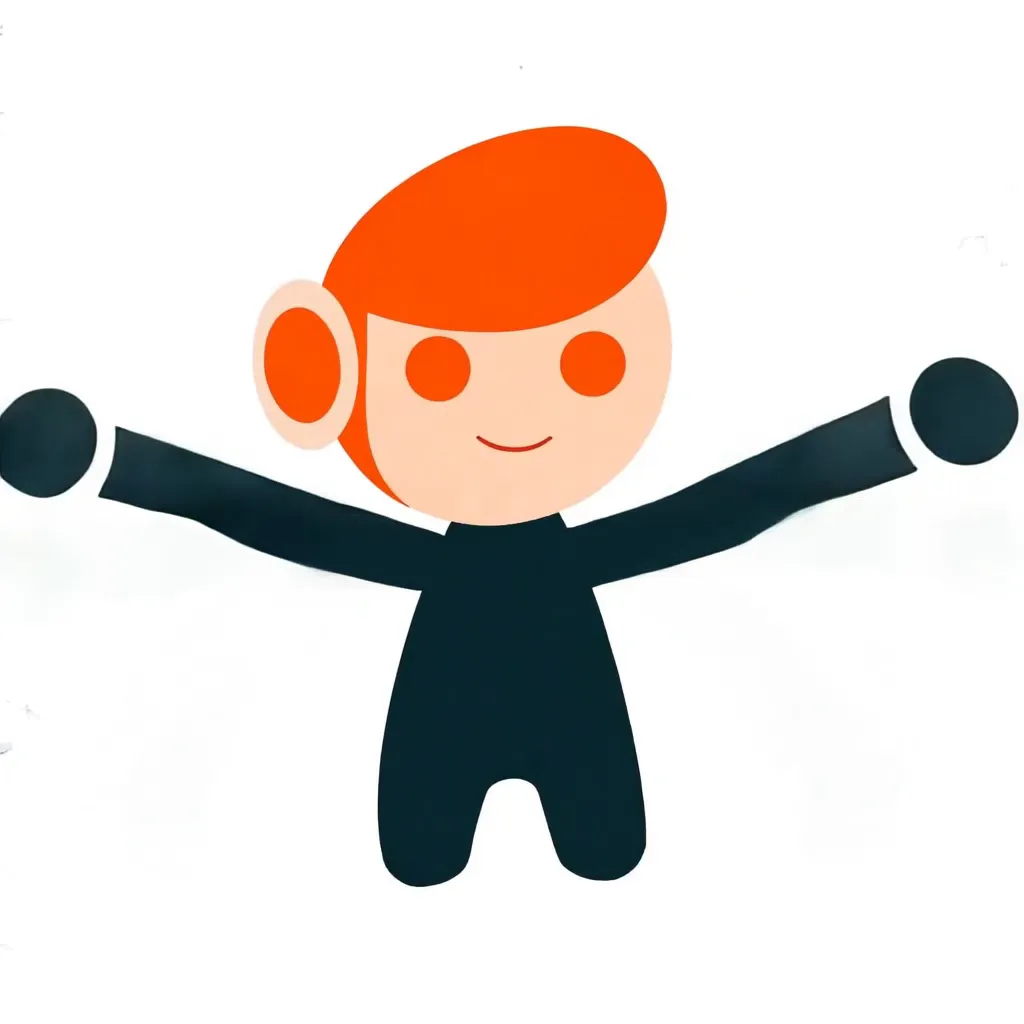
The mascot becomes more engaging and memorable.
Best Practices
- Start with short drafts before producing longer animations.
- Test multiple motion videos — they can produce dramatically different results.
- Use one subject per image for more consistent animations.
- Keep prompts simple; short prompts often outperform complex ones.
- Always review drafts before final export.
- Match motion style to your audience — energetic for social, restrained for business.
Common Mistakes to Avoid
- Low-quality images reduce animation quality.
- Poor motion videos create bad animation — bad motion in, bad motion out.
- Overly complex prompts usually work worse than simple ones.
- Ignoring draft review — always check before exporting.
Troubleshooting Guide
Why does my animation look unnatural?
Usually poor source motion, a weak prompt, or a low-quality image.
Why does identity change?
Often a low-resolution image, occlusions, or a side-profile image.
Why is motion too weak?
Try better source motion or a stronger motion prompt.
Why is motion too strong?
Subtle movement, stable identity.Why is generation slow?
High resolution, long duration, or heavy processing load.
Frequently Asked Questions
What video formats are supported?+
MP4 is recommended.
What image formats are supported?+
JPG and PNG.
Can I animate illustrations?+
Yes.
Can I animate AI-generated images?+
Yes.
What FPS should I choose?+
24 FPS is usually sufficient.
When should I use 1080p?+
For final exports.
Can I animate product photos?+
Yes.
Can I reuse images?+
Yes.
How long should source videos be?+
Usually 3–15 seconds.
Can I create social media videos?+
Absolutely.
Conclusion
P Video Animate turns static images into animated drafts through motion transfer. Combine a clear source motion video, a strong reference image, and a concise motion prompt — and review drafts before exporting — to create engaging animations for marketing, education, social media, and storytelling.
Ready to animate
Turn a still image into motion
Upload a source video and a reference image, write a short motion prompt, and generate your first animated draft in P Video Animate.