
Guide · 2026
How to Use P Video AI Video Generator (2026 Complete Step-by-Step Guide)
Create AI videos from text or images with P Video. This step-by-step guide covers the full workflow, prompt writing, settings, and the mistakes that hold most beginners back.
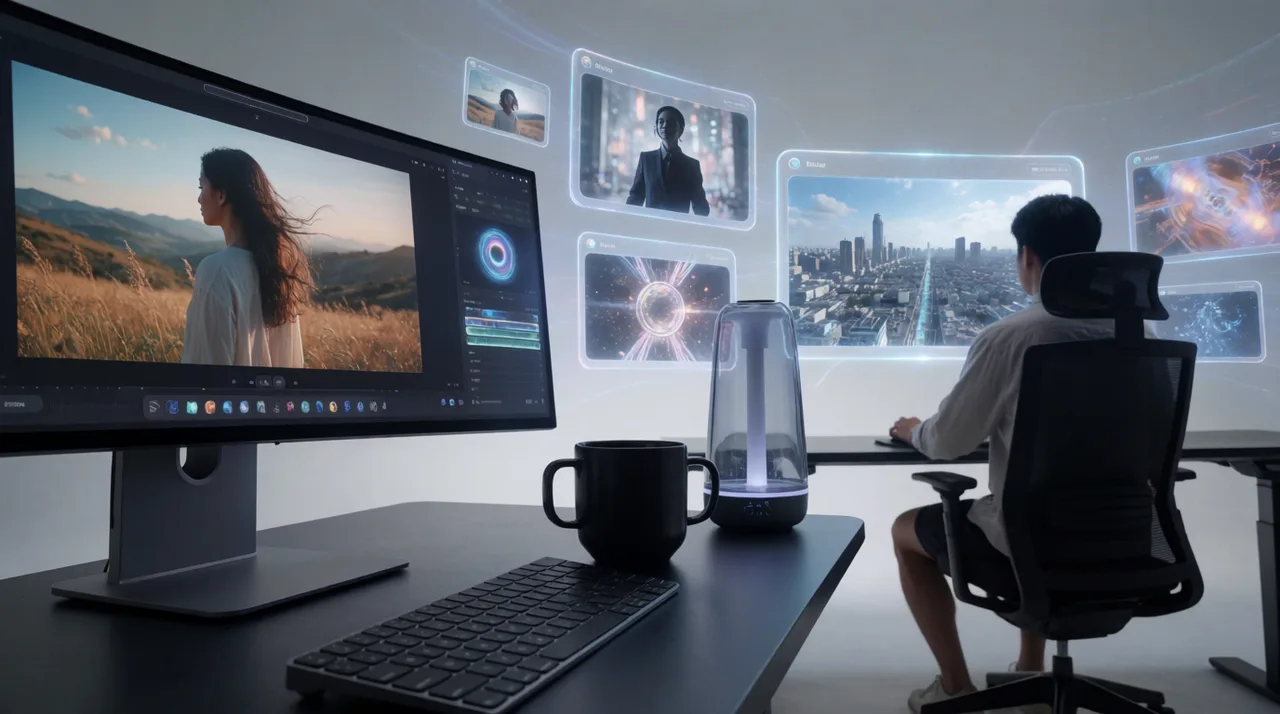
Quick Answer
P Video AI Video Generator lets you create AI-powered videos from text prompts or images in a few steps:
- Open the P Video Generator workspace.
- Choose Text-to-Video or Image-to-Video.
- Write a detailed prompt or upload an image.
- Select the aspect ratio and resolution.
- Generate the video.
- Review the result and refine your prompt if necessary.
- Download and publish your final video.
Most users can create their first AI-generated video in less than ten minutes.
What Is P Video AI Video Generator?
P Video AI Video Generator is a browser-based AI platform that creates videos from text descriptions (Text-to-Video) or static images (Image-to-Video). You can generate high-quality short videos for social media, product marketing, advertising, and creative storytelling — without cameras or editing software.
Key advantages
- Quick generation workflow
- Accessible for beginners
- Supports both text and image inputs
- Compatible with multiple social media formats
What You Need Before Starting
- A clear video concept: Know your target platform and purpose.
- Reference images (optional): High-quality product or portrait images for Image-to-Video.
- Target platform: TikTok, Instagram Reels, YouTube Shorts, etc.
- Draft prompt: A preliminary description of subject, action, environment, and style.
Understanding Text-to-Video vs Image-to-Video
Text-to-Video
Text-to-Video generates a video based entirely on your written prompt — you describe the subject, environment, action, camera movement, lighting, and style, and the AI creates a matching scene.
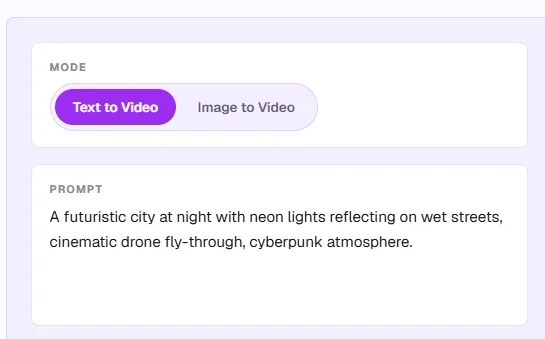
A futuristic city at night with neon lights reflecting on wet streets, cinematic drone fly-through, cyberpunk atmosphere.
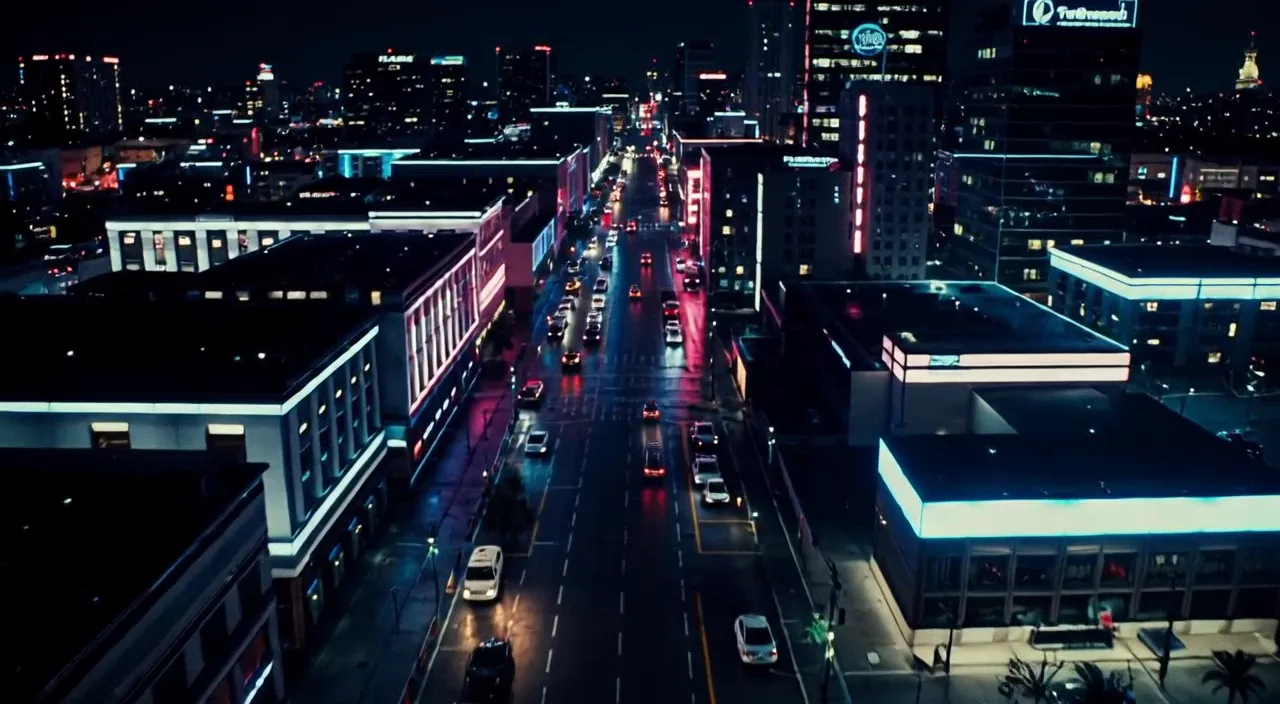
Best for creative concepts, social visuals, storytelling, mood videos, and ad concepts. No source material required.
Image-to-Video
Image-to-Video starts with an existing image and generates motion around it. Because the AI has a specific reference, this often produces more consistent, predictable results.
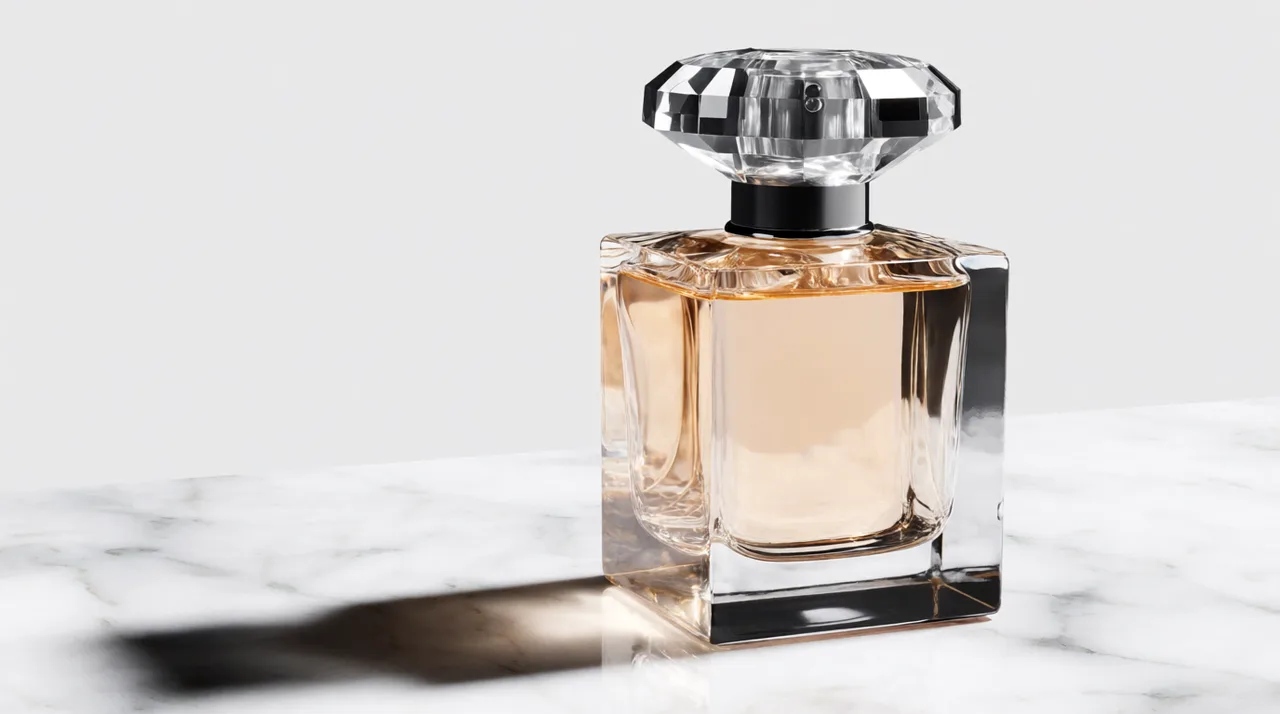
Slow cinematic camera push-in, premium studio lighting.
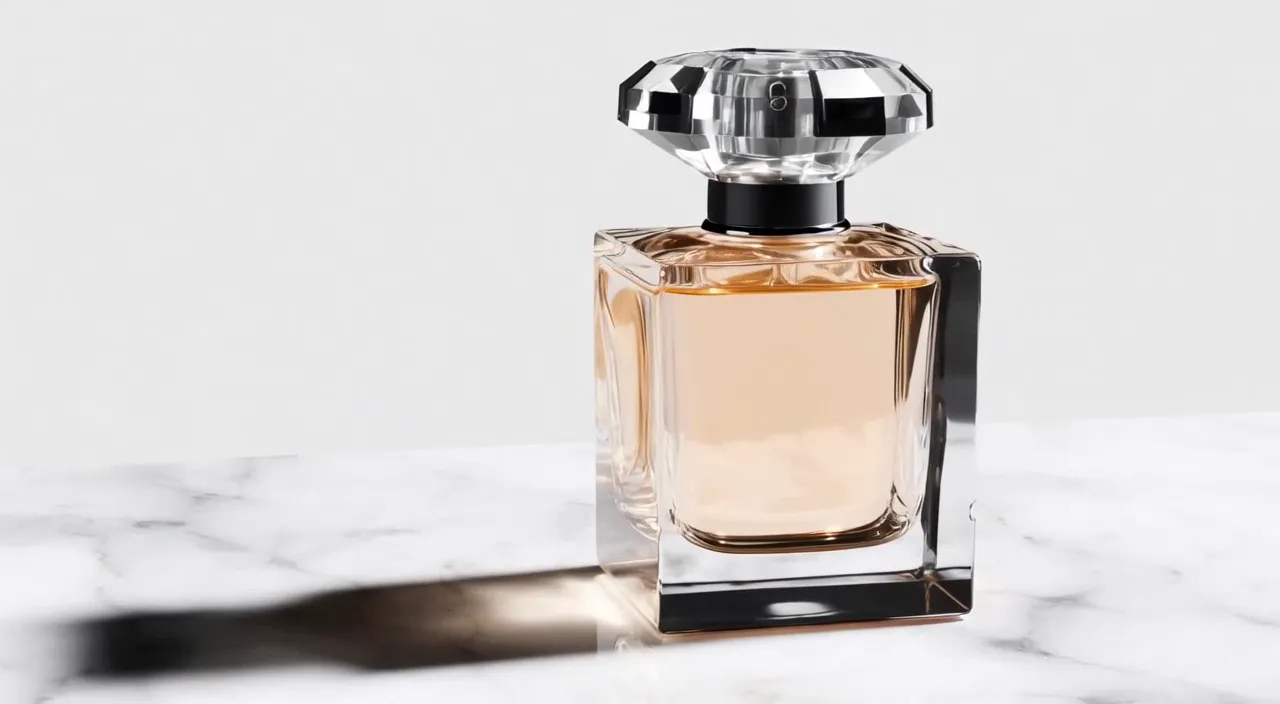
Best for product videos, brand assets, portraits, concept art, and marketing creatives — with greater visual consistency and product accuracy.
Step 1: Open the P Video Workspace
The first step is accessing the P Video Generator interface.
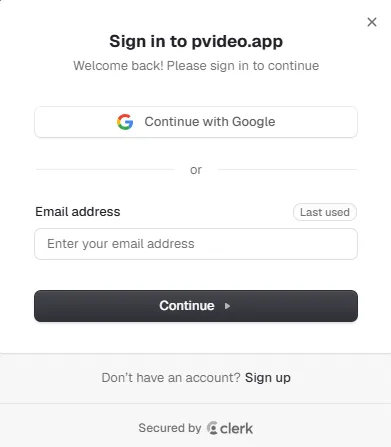
Once inside, you'll see the prompt editor, image upload section, generation settings, and output panel. Take a moment to learn the layout — many beginners rush in and make avoidable mistakes later.
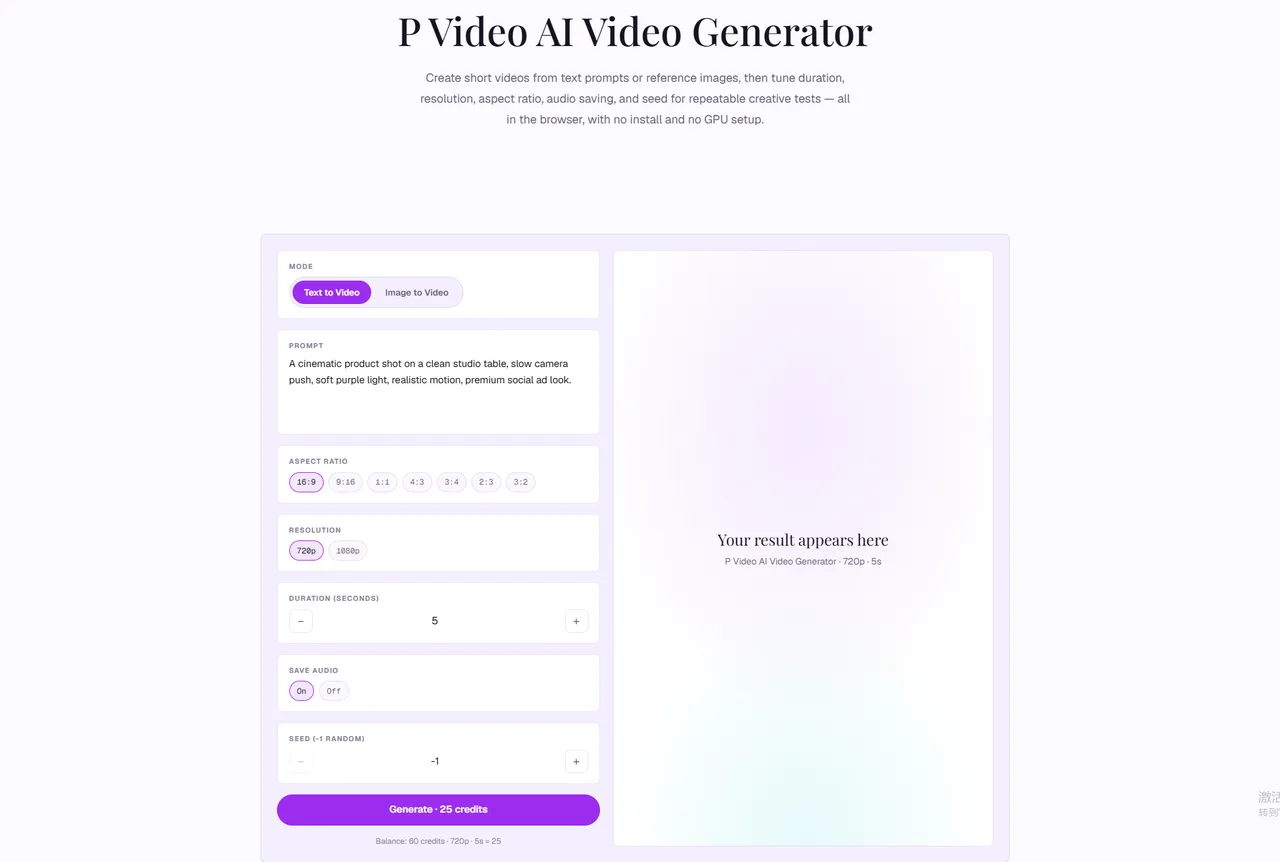
What to Look For
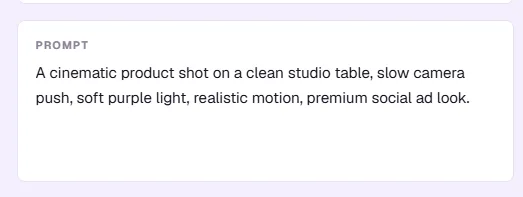
Prompt Input Area
This is where you describe your video. Prompt quality heavily influences the final result.
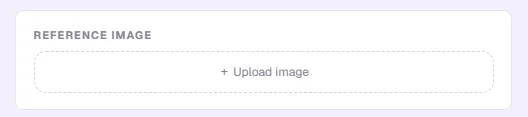
Upload Area
For Image-to-Video, this is where you upload your reference image.
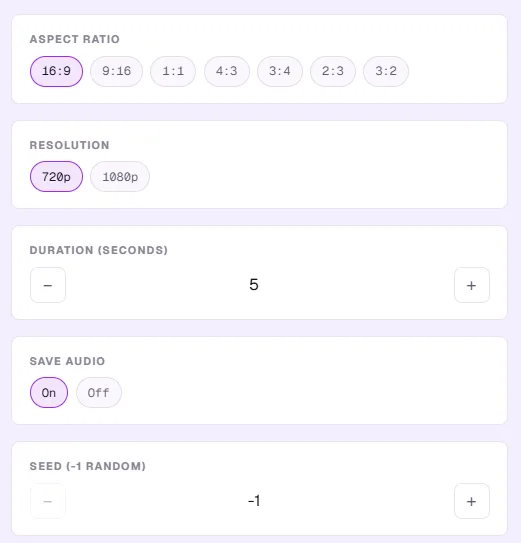
Settings Panel
Contains aspect ratio options, resolution settings, and additional generation controls.
Output Area
Generated videos appear here for review and download.
Step 2: Choose Your Generation Mode
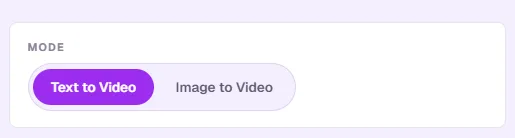
- Text-to-Video: Generate content entirely from a descriptive prompt.
- Image-to-Video: Animate a single image with motion — useful for marketing or portraits.
Step 3: Write an Effective Prompt
The key to high-quality AI videos is a structured prompt.
Subject + Action + Environment + Camera + Lighting + Style
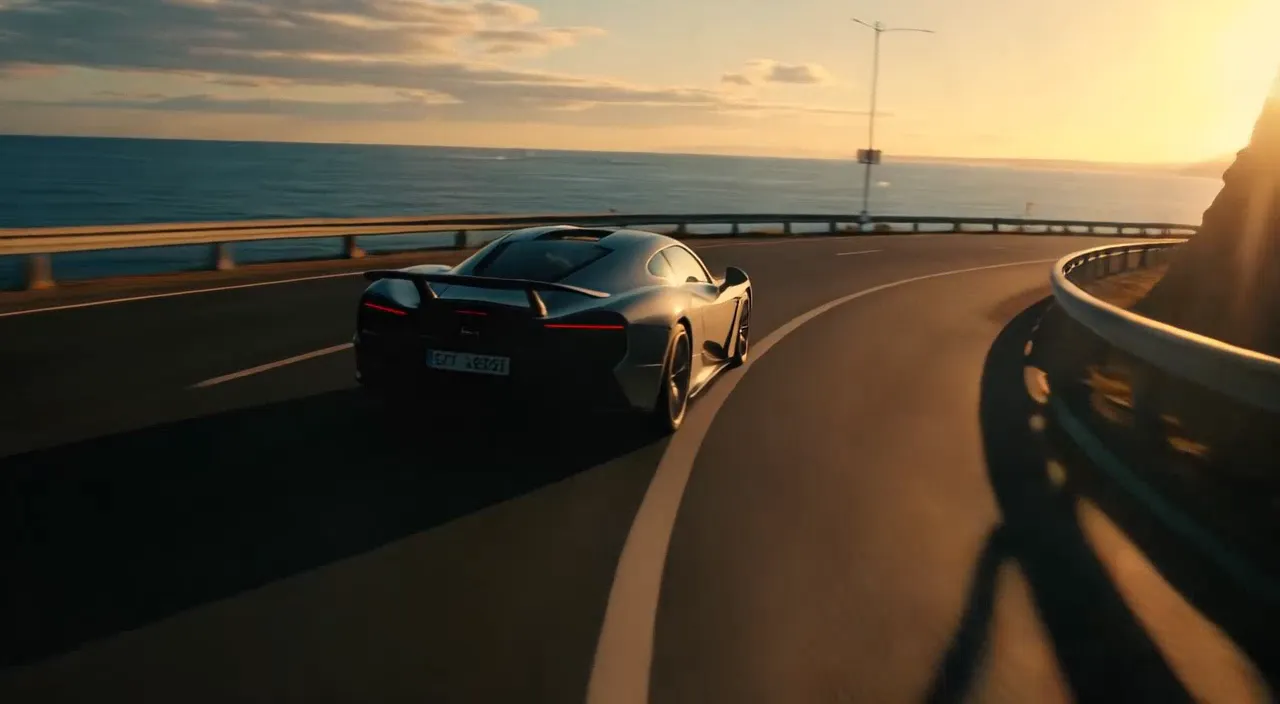
A luxury sports car driving along a coastal highway at sunset, cinematic tracking shot, golden hour lighting, realistic commercial advertising style.
- Focus on a single subject for clarity
- Include camera movement terms: slow push-in, tracking shot, orbit camera
- Specify lighting and style for realism
Prompt writing is the single most important skill in AI video generation. A strong prompt gives the AI clear instructions; a weak one leaves too much room for interpretation.
Step 4: Upload a Reference Image (Optional)

Best image practices
- High-resolution (≥1024px)
- Clear subject
- Simple composition and clean background
Avoid
- Blurry or low-quality images
- Multiple competing subjects
- Obstructed objects
Step 5: Configure Video Settings
Aspect Ratio
- 9:16: TikTok, Instagram Reels, YouTube Shorts
- 16:9: YouTube, website hero videos, ads
- 1:1: Social media posts and ads
Resolution
Start with 720p to test prompts, then upgrade to 1080p for high-quality results.
Step 6: Generate Your Video
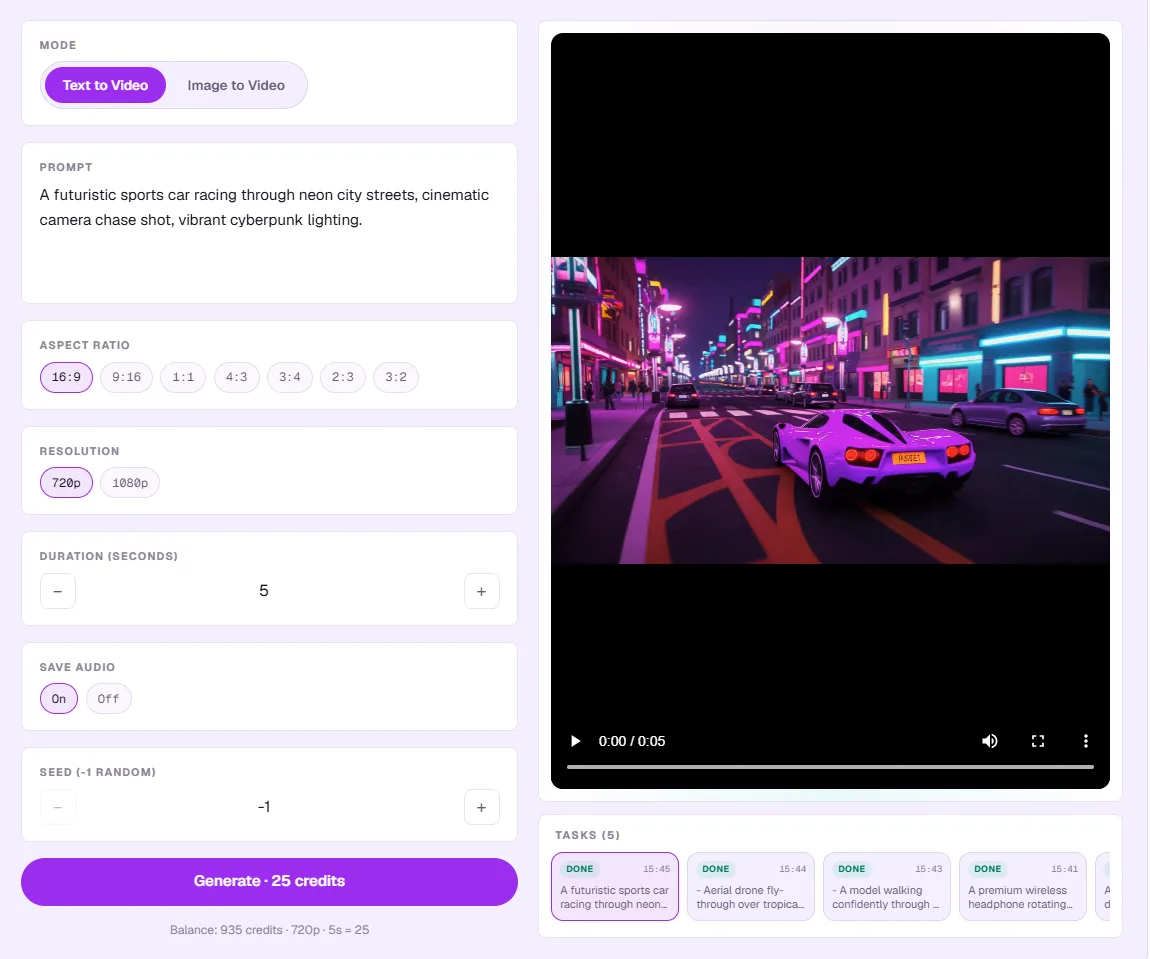
- Click Generate after configuring your prompt and settings.
- AI processes the input and creates a draft video.
- Preview the draft to evaluate subject accuracy, motion fluidity, and style.
Step 7: Review and Improve Results
Iterate drafts until satisfied before generating the final 1080p version. Note any inconsistencies or errors and refine the prompt one variable at a time.
Advanced Prompt Techniques
Professional creators typically structure prompts around five key components.
1. Subject
The most important element. Be specific (luxury wristwatch, sports car, fashion model) — vague subjects produce inconsistent results.
2. Motion
Walking, driving, flying, rotating, floating. Without motion, many videos feel static.
3. Environment
Modern city, luxury studio, beach at sunset, mountain landscape. Good environments create mood and storytelling.
4. Camera Movement
Often forgotten — and one of the biggest differences between amateur and professional prompts.
- Slow Push-In
- Cinematic Tracking Shot
- Orbit Camera
- Drone Fly-Through
- Wide Establishing Shot
- Handheld Documentary Style
- Close-Up Shot
5. Style
Cinematic, commercial advertising, documentary, editorial photography, realistic, luxury brand campaign. Without style references, outputs feel generic.
Best Prompt Examples by Industry
The same workflow applies to many industries. Adapt these examples for your own projects.
Product Marketing
Instead of organizing expensive studio shoots, brands can quickly create multiple visual concepts.
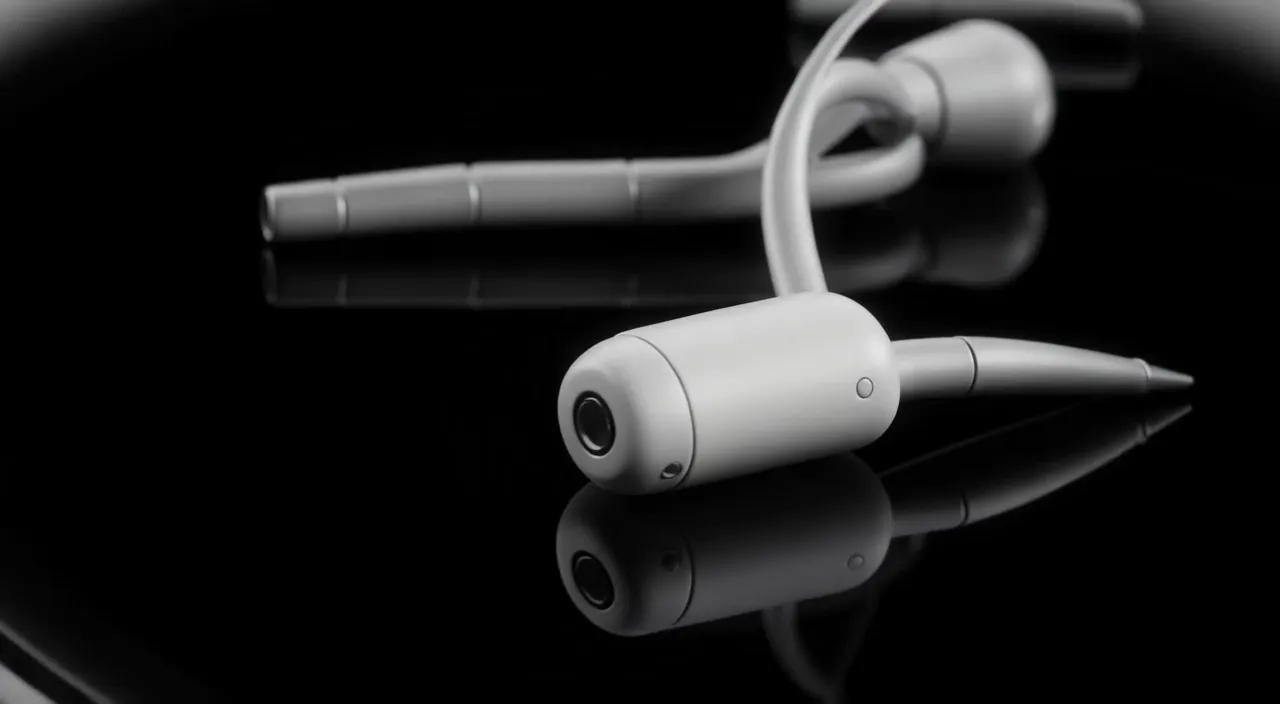
Premium wireless earbuds floating above a reflective black surface, cinematic product reveal, luxury commercial lighting, ultra realistic, smooth orbit camera movement.
Best for: E-commerce stores · Product launches · Landing pages · Social media ads
Fashion and Beauty
Fashion content benefits from cinematic movement and premium lighting.
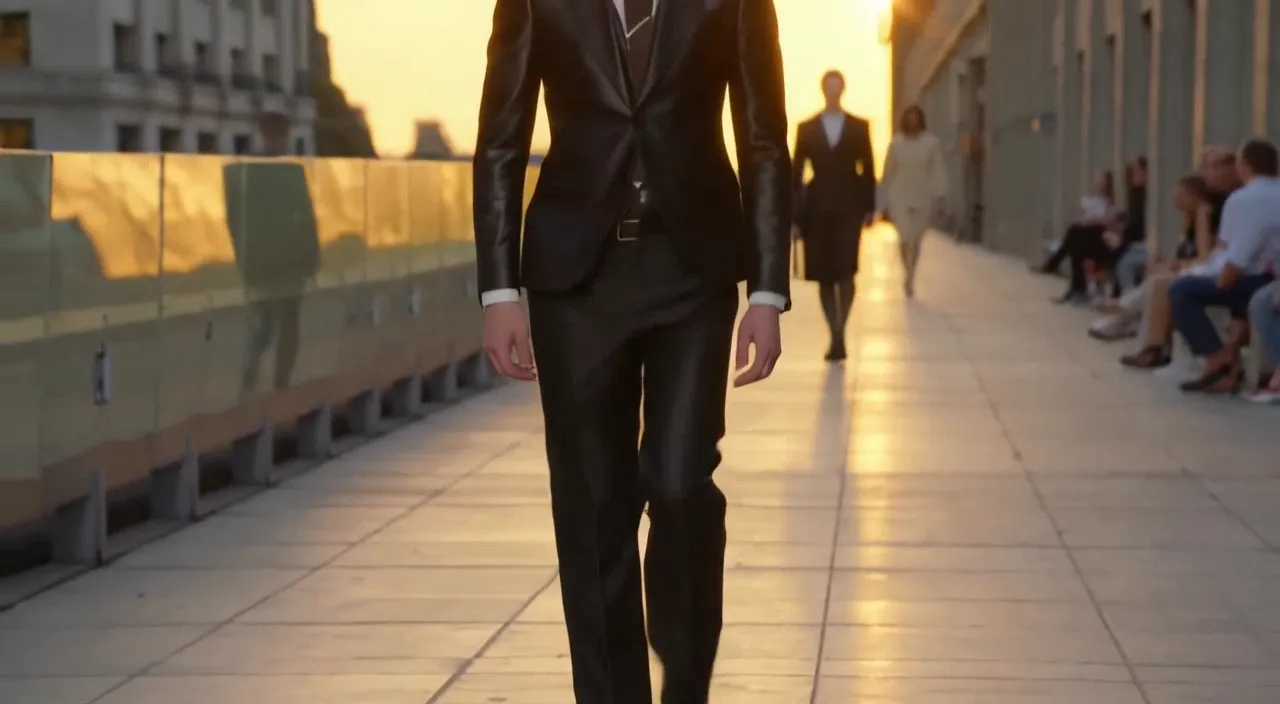
Fashion model walking confidently through a modern city street during golden hour, cinematic tracking shot, luxury editorial photography style, shallow depth of field.
Best for: Instagram Reels · Fashion campaigns · Brand awareness · Lifestyle content
Travel Content
Travel creators can use AI video generation to visualize destinations and concepts.
Aerial drone fly-through over tropical islands at sunrise, crystal clear ocean water, cinematic travel documentary style, vibrant colors.
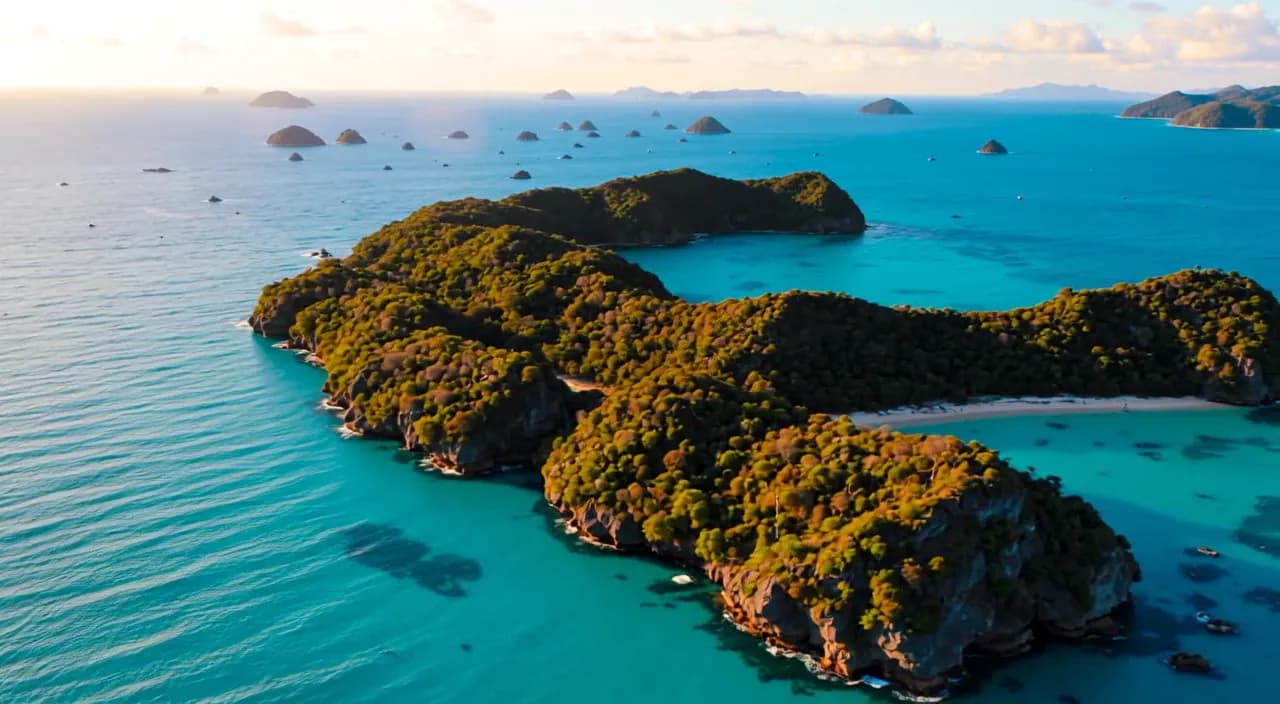
Best for: Travel blogs · YouTube Shorts · Tourism marketing · Social media campaigns
Technology Products
Technology products often benefit from futuristic visual styles.
Futuristic smartphone floating above a glowing platform, dramatic lighting, cinematic product reveal, ultra detailed commercial advertising style.
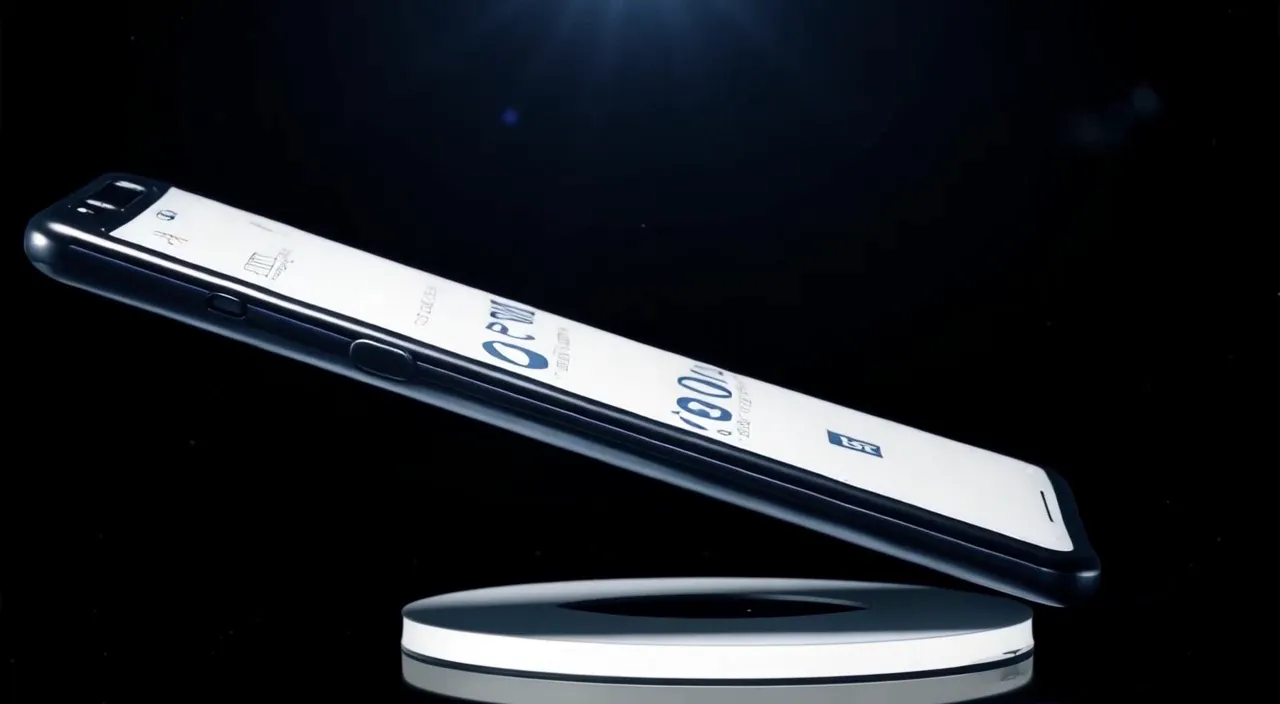
Best for: Product announcements · Technology brands · Launch campaigns · Marketing presentations
Food and Beverage
Food content performs exceptionally well when paired with warm lighting and slow camera movement.
Freshly baked croissants arranged on a rustic wooden table, warm morning sunlight, cinematic slow push-in, realistic food photography style.
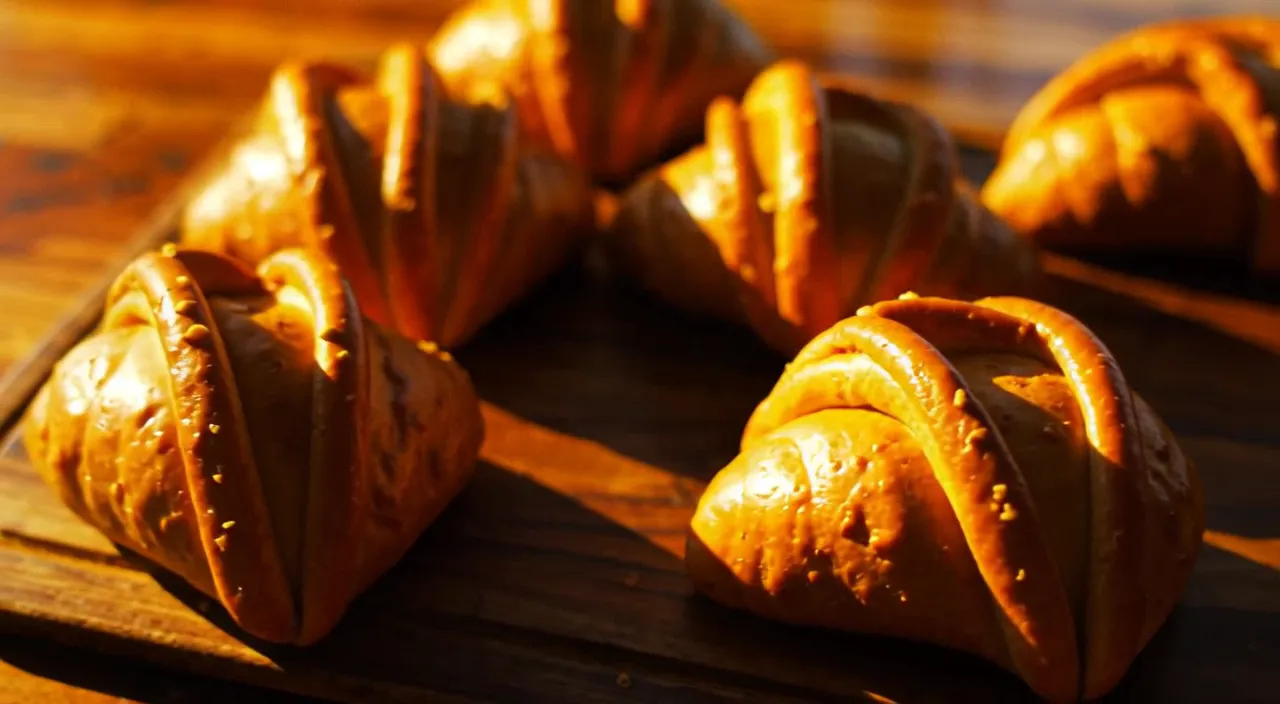
Best for: Restaurants · Cafés · Food bloggers · Social media advertising
Real Estate
Real estate marketing can benefit from cinematic fly-through visuals.
Modern luxury villa overlooking the ocean, cinematic drone approach, sunset lighting, premium architectural visualization style.
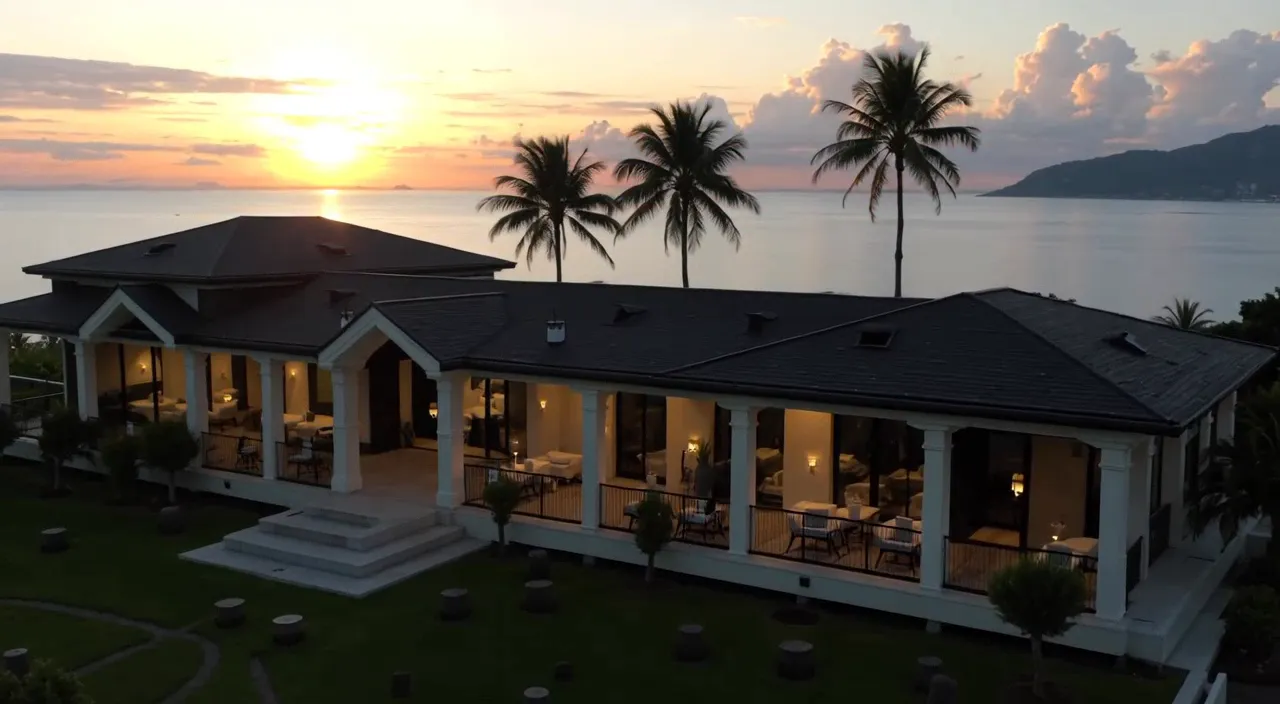
Best for: Property marketing · Real estate agencies · Luxury developments · Website hero videos
Common Mistakes to Avoid
Mistake 1: Prompts That Are Too Short
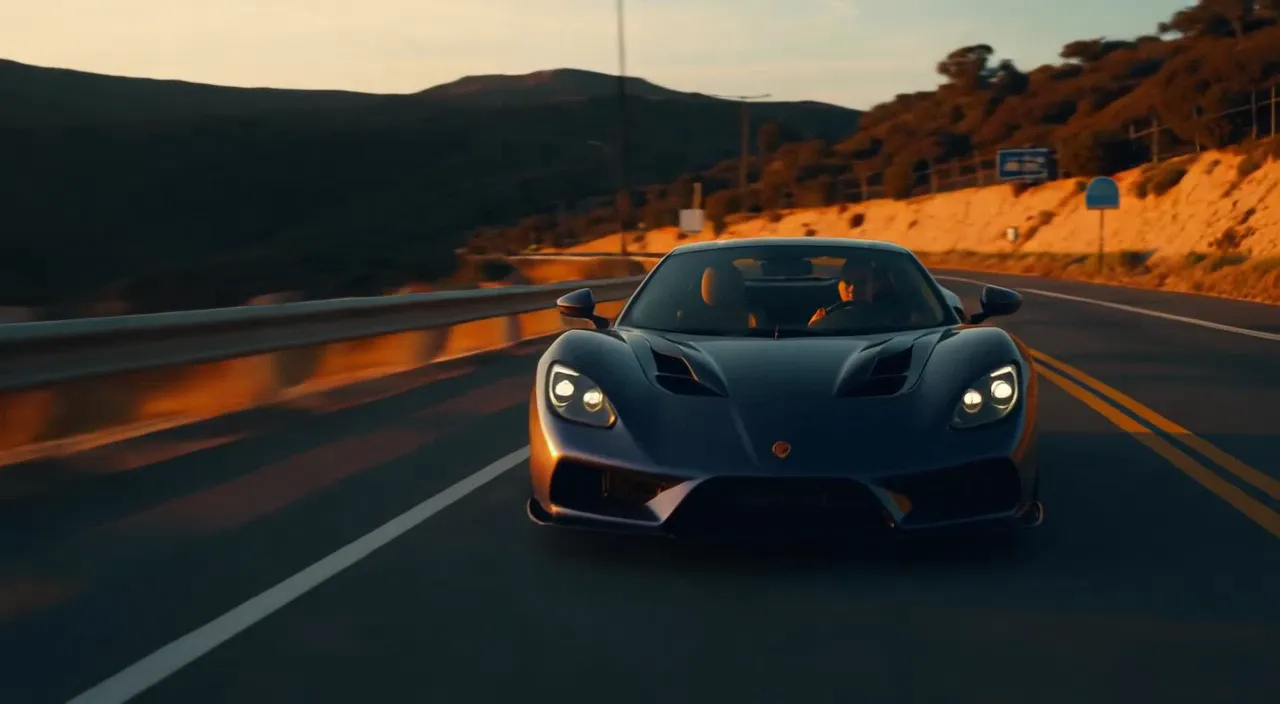
Prompts like “Car” or “Woman walking” provide too little information. Include subject, motion, environment, lighting, and style.
Luxury sports car driving along a coastal highway at sunset, cinematic tracking shot, golden hour lighting, realistic automotive commercial style.
Mistake 2: Ignoring Camera Movement
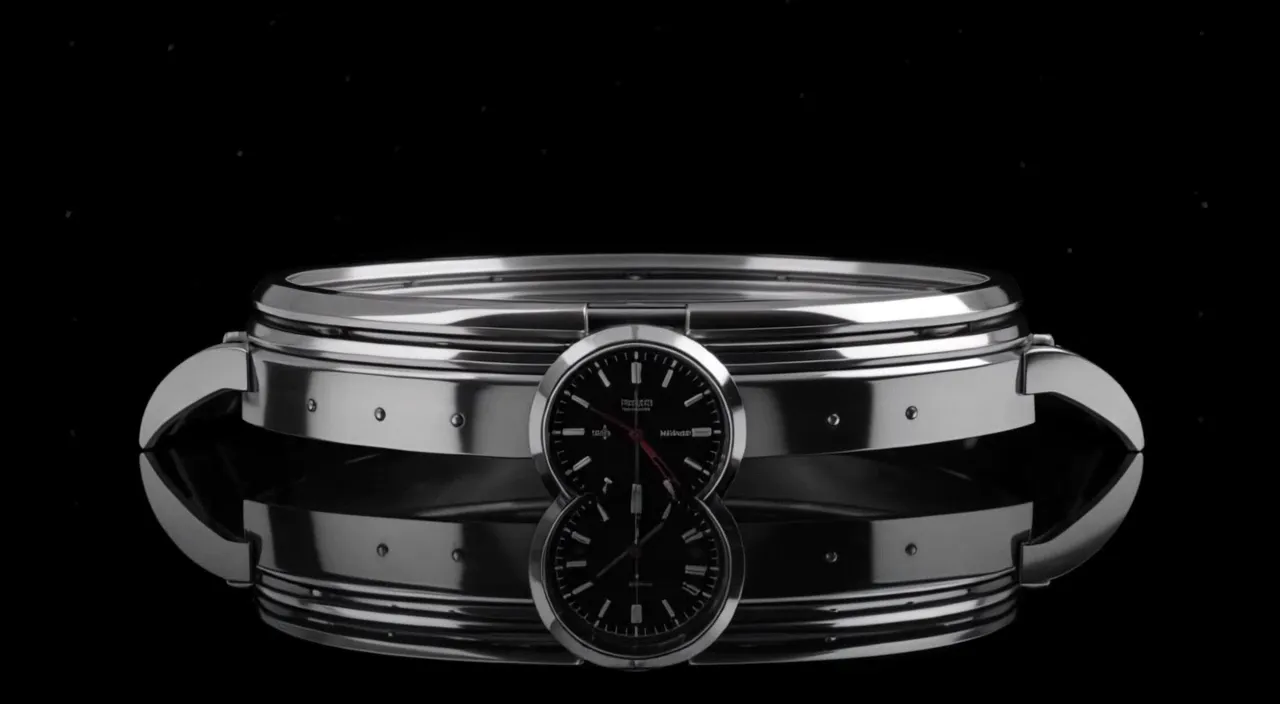
Camera instructions make the difference between a basic result and a cinematic one.
Luxury watch on a reflective black surface, cinematic orbit camera movement, premium studio lighting.
Mistake 3: Using Low-Quality Images
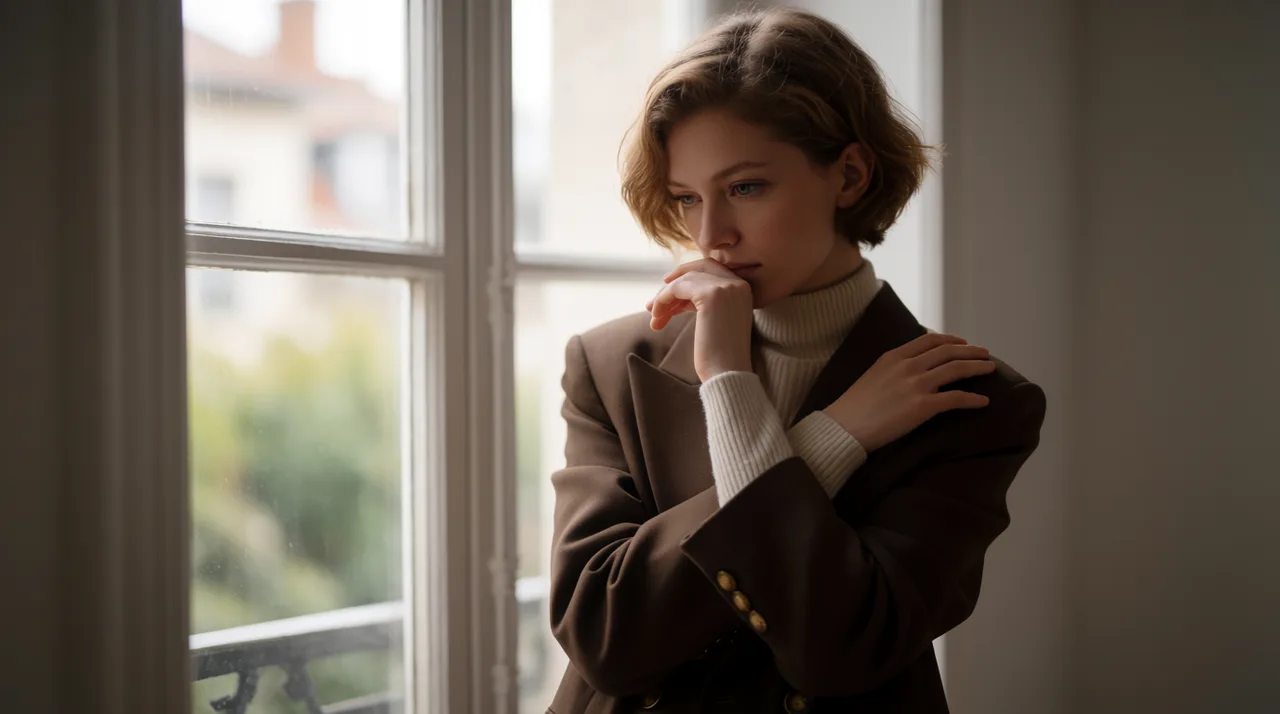
In Image-to-Video mode, image quality matters. Use high-resolution images with a clear subject, good lighting, and a clean background.
Mistake 4: Too Many Subjects
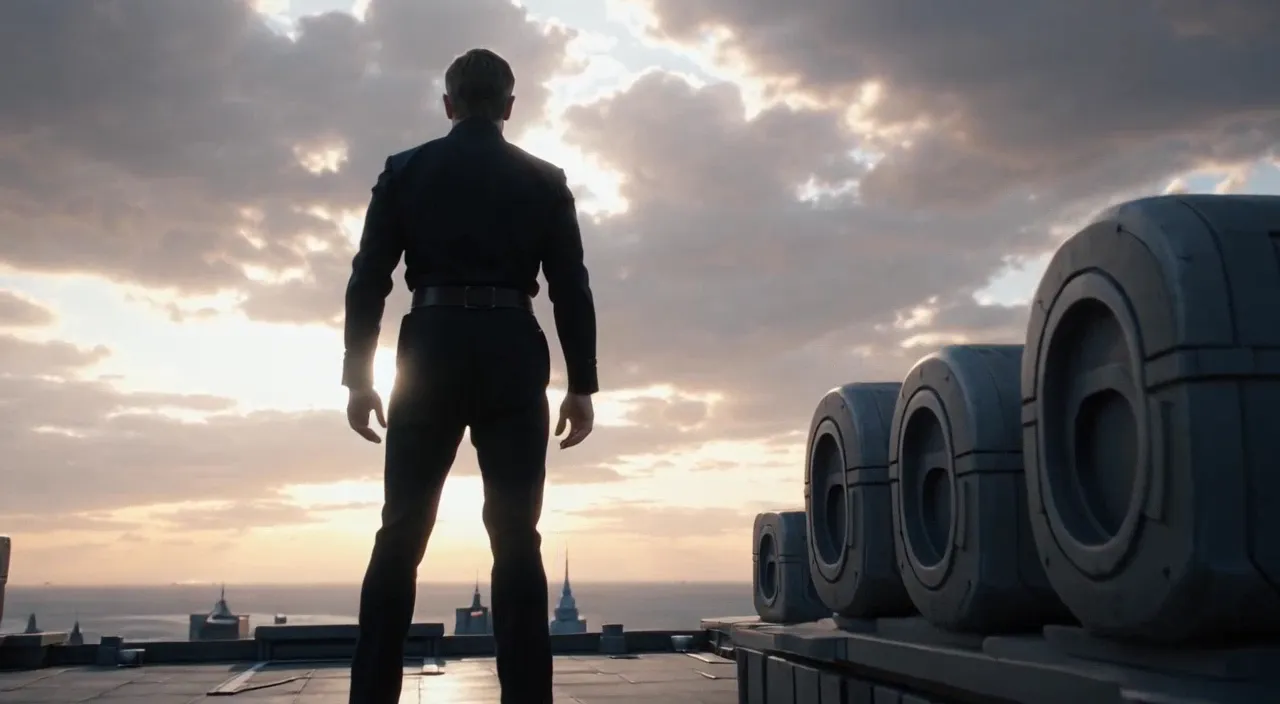
AI performs better with a single primary subject. Avoid cramming several actions into one prompt.
A businessman standing on a rooftop overlooking a futuristic city, cinematic camera push-in, dramatic lighting.
Mistake 5: Skipping Draft Iterations
Generate a draft, review, adjust the prompt, generate again, then export. Small prompt changes often produce major improvements.
Troubleshooting Guide
The subject doesn't look right
Add detail. Instead of “Woman”, use “Young woman with long brown hair wearing a white jacket, standing in a modern city environment.”
Motion feels strange
Specify the exact movement: slow push-in, orbit camera, smooth tracking shot, drone fly-through.
The scene looks generic
Add visual direction: cinematic, luxury commercial, fashion editorial, documentary style, realistic photography.
Product shape changes
Use a higher-quality image, a simpler prompt, and a clear product focus.
Results vary too much
Keep a consistent prompt structure and change only one thing at a time.
Frequently Asked Questions
What is P Video AI Video Generator?+
A browser-based AI tool for generating videos from text or images.
Can I create videos from text only?+
Yes, via Text-to-Video mode.
Can I animate existing images?+
Yes, Image-to-Video mode allows animating product images or portraits.
Is P Video beginner-friendly?+
Absolutely — anyone can learn quickly.
What is the best aspect ratio for TikTok?+
9:16 vertical video.
How long does generation take?+
Usually a few minutes, depending on complexity.
Why does my video look different from my prompt?+
Prompt too short, style missing, conflicting instructions, or low-quality images.
Can I use generated videos commercially?+
Yes, depending on your license and content ownership.
Which images work best?+
High-resolution, single-subject images with clean backgrounds.
What resolution should I choose?+
Start with 720p for testing; 1080p for final output.
Final Thoughts
P Video makes video creation more accessible than ever. The most successful users start with a clear goal, write a detailed prompt, use high-quality images when needed, choose the right aspect ratio, generate drafts first, and refine through iteration. Like any skill, it improves with practice.
Ready to create
Turn your first idea into a video
Begin with a simple idea, write a clear prompt, and generate your first clip in the P Video AI Video Generator.
TikTok & Reels Tips
Better TikTok Videos
Focus on the first three seconds, keep the subject large, and use motion — TikTok rewards movement and clear subjects.
Better Instagram Reels
Instagram audiences respond to visual aesthetics — fashion, lifestyle, beauty, travel, and luxury products.